
The Best Way to Import WooCommerce Products from Amazon
Amazon sellers can import their existing product catalogs into WooCommerce to establish their own online stores without recreating every product manually. However, keeping prices and stock quantities accurate requires updating WooCommerce as Amazon listings change.
Amazon Seller Central’s All Listings Report provides a snapshot of a seller’s products, including SKUs, prices, and stock quantities. A third-party import plugin can use this report to create WooCommerce products and update them when newer reports become available.
In this guide, we’ll show you how to import an Amazon listings report and update existing products using WP All Import.
What We’ll Cover
Three Ways to Get Amazon Products into WooCommerce
There are three practical ways to move products from Amazon to WooCommerce. They differ in how much work they take and in whether the sale happens in your WooCommerce store or on Amazon.
| Method | What the store ends up with | Where it falls short |
|---|---|---|
| Manual entry | Products created one at a time in the WooCommerce editor | Slow for any real catalog, and prices and stock drift from Amazon with no way to update them in bulk |
| Amazon API plugin | Affiliate listings that pull details from Amazon and send shoppers back to Amazon to buy | The sale and the customer stay on Amazon; access runs through Amazon’s Creators API, which replaced the retired Product Advertising API 5.0 |
| Listings report + importer | Complete WooCommerce products with your own prices, stock, and checkout | Requires downloading the report from Seller Central first |
Manual entry works if you’re adding a few items, and API plugins suit affiliate sites. For your own catalog, we recommend the listings report, because it already holds every product in one file.
WP All Import turns an Amazon listings report into WooCommerce products in a single import and updates those products from each newer report, which makes the report-based method the most complete option for sellers moving their own catalog.
What’s Inside an Amazon Listings Report
You’ll find the All Listings Report in Amazon Seller Central under Inventory > Inventory Reports. It exports every product you’ve listed, one SKU per row. Amazon delivers it as a tab-delimited .txt file, and its column names follow Amazon’s conventions rather than WooCommerce’s. Here’s how the main columns line up:
| Amazon column | WooCommerce product field |
|---|---|
| item-name | Product title |
| item-description | Product description |
| seller-sku | SKU |
| price | Regular price |
| quantity | Stock quantity |
| image-url | Featured image |
| asin1 | Custom field (ASIN) |
The report also includes Amazon-only columns such as fulfillment-channel and open-date, which we leave out of a WooCommerce import. Each row holds one main image per product, so gallery images and variation relationships need to come from additional data mapped during the import.
WP All Import reads the report’s tab-delimited layout as it downloads from Seller Central, so the file goes straight to the import screen without a stop in a spreadsheet editor.
Import Amazon Products with Automatic Setup
WP All Import’s Automatic Setup reads an Amazon listings report, identifies what each column contains, and maps the data to WooCommerce product fields before the import runs. When we ran a sample All Listings Report through it, every Amazon column landed in the right WooCommerce field without any setup instructions. A first import takes four steps.
Step 1: Upload the Amazon Listings Report
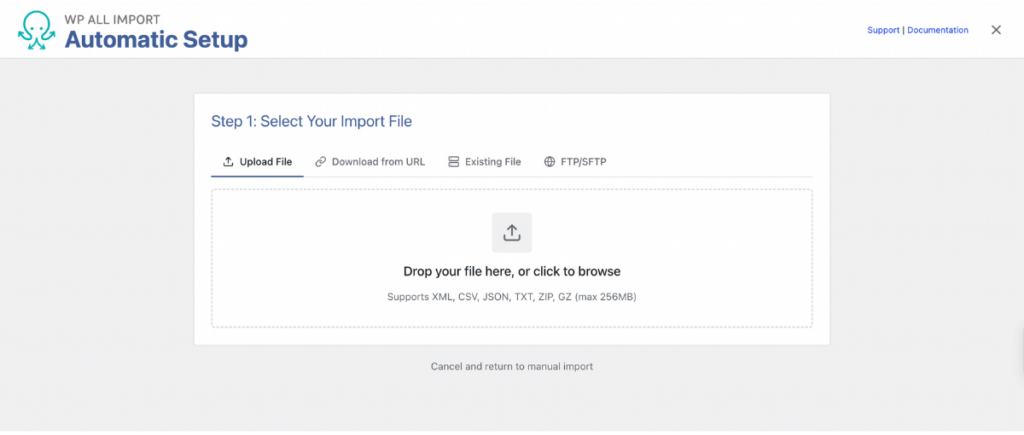
Go to All Import > New Import and click Set up automatically at the top of the screen. Upload the report from your computer, or load it through Download from URL, Existing File, or FTP/SFTP. If you save each new Amazon report to the same location, a URL or FTP source saves you an upload every time. The uploader accepts TXT files alongside CSV, XML, and JSON, so the report goes in as Amazon delivers it.
Step 2: Select WooCommerce Products
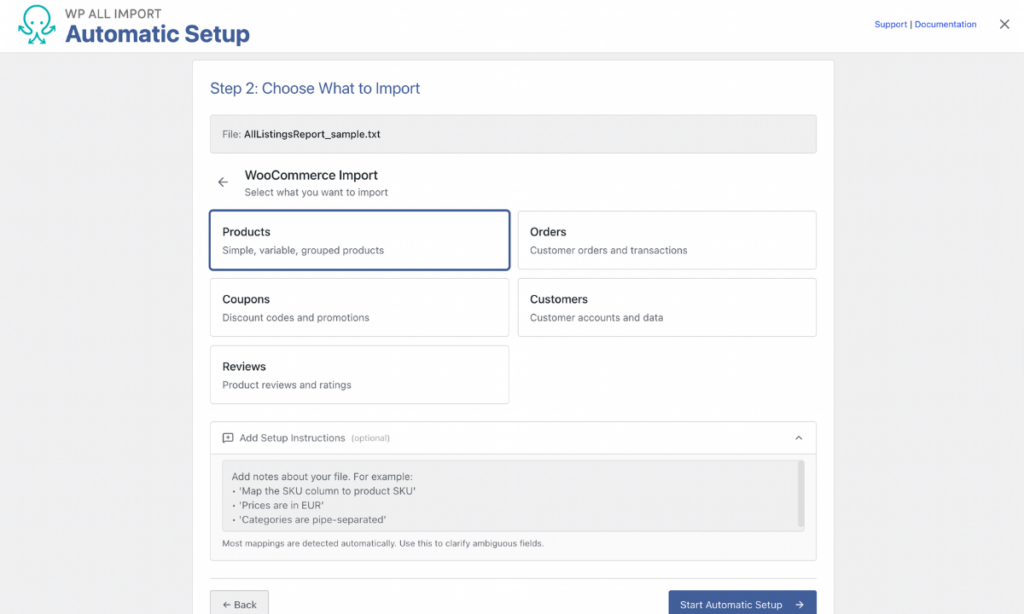
Under Choose What to Import, select WooCommerce, then Products, and click Start Automatic Setup. Automatic Setup recognizes Amazon’s column names, such as item-name, seller-sku, and quantity, on its own, so a standard report doesn’t need anything in the optional Add Setup Instructions field. Accept the data processing consent prompt, and a progress screen tracks each part of the import as it’s configured, including title and description, images, categories, and custom fields.
Step 3: Review the Mappings and Preview the Products
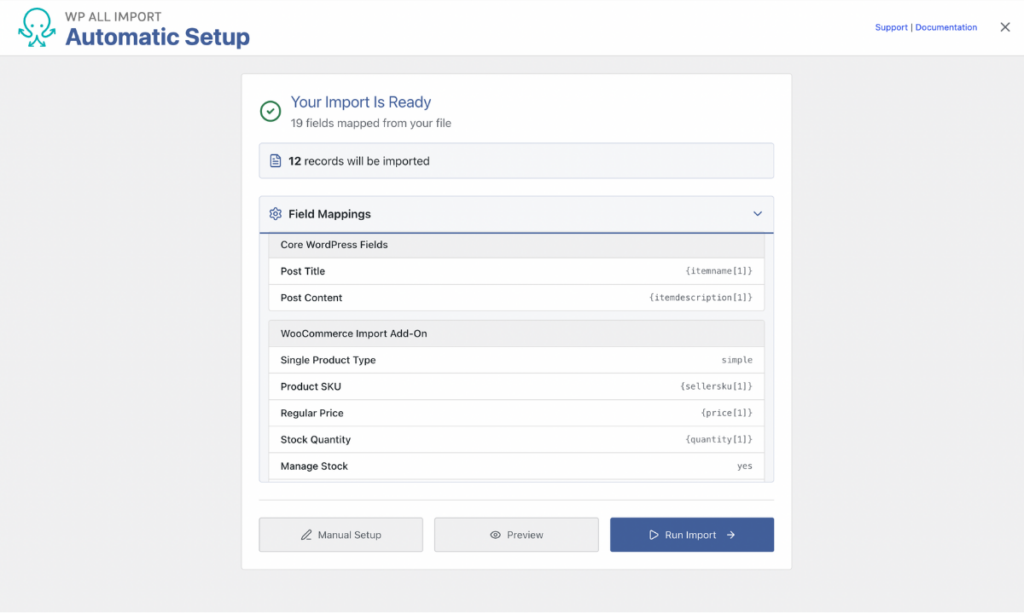
The Your Import Is Ready screen shows how many fields were mapped and how many Amazon records will be imported. Expand Field Mappings to check each assignment, grouped under Core WordPress Fields, WooCommerce Import Add-On, Images, Taxonomies, and Custom Fields. Before going further, we always confirm that seller-sku maps to the SKU and price to the regular price.
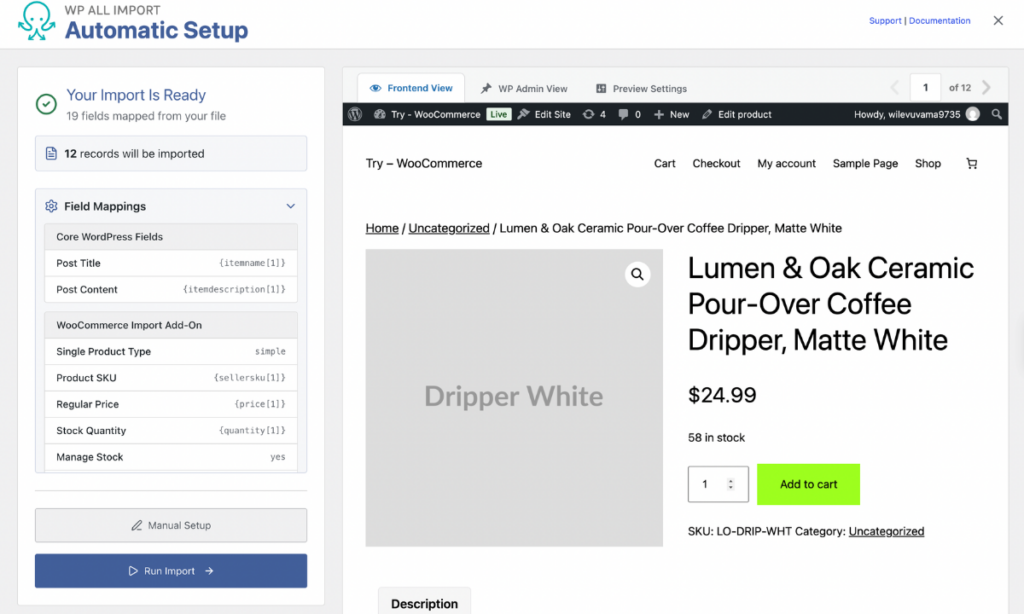
Click Preview to see the products before anything is created. Frontend View shows each product page as shoppers will see it, WP Admin View shows the WooCommerce edit screen, and the record selector pages through every product in the report.
Step 4: Run the Import
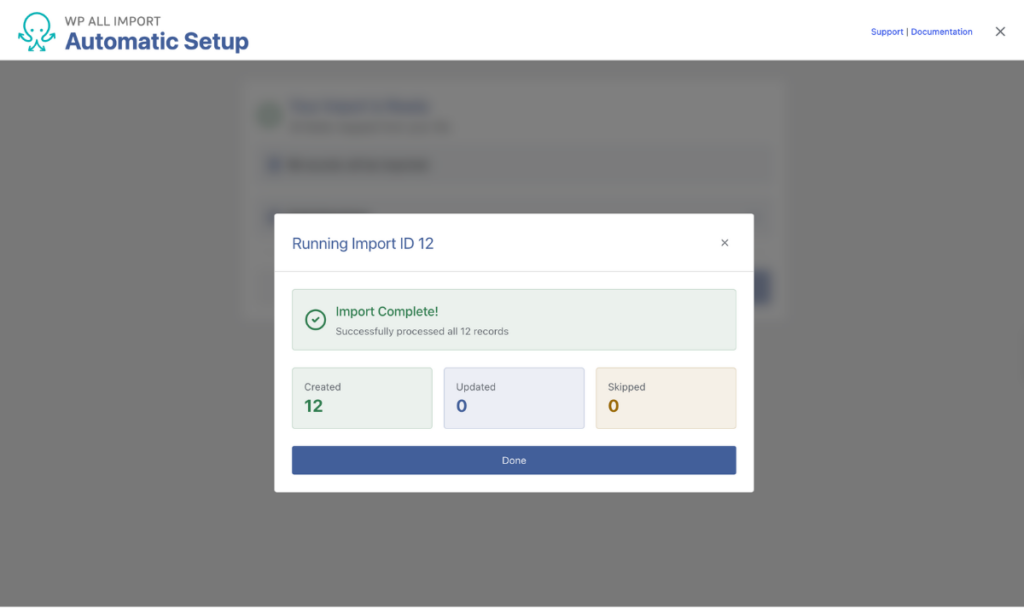
Click Run Import. When the import finishes, the summary shows how many products were created, updated, and skipped. Open Products > All Products to check your new WooCommerce catalog.
WP All Import processes large files in batches, so a report listing several thousand Amazon products runs through the same four steps as one listing a dozen.
Fine-Tune Amazon Data in Manual Setup
Automatic Setup handles the full mapping, but you may want some Amazon values changed on the way in. Clicking Manual Setup on the Your Import Is Ready screen opens the template editor with every automatic mapping already in place, so you only touch the fields that need changes.
WP All Import runs PHP functions on incoming values during the import, which means an Amazon price, status, or title changes as it enters WooCommerce without anyone editing the source file. These are the two adjustments we reach for most often.
Apply a Price Markup
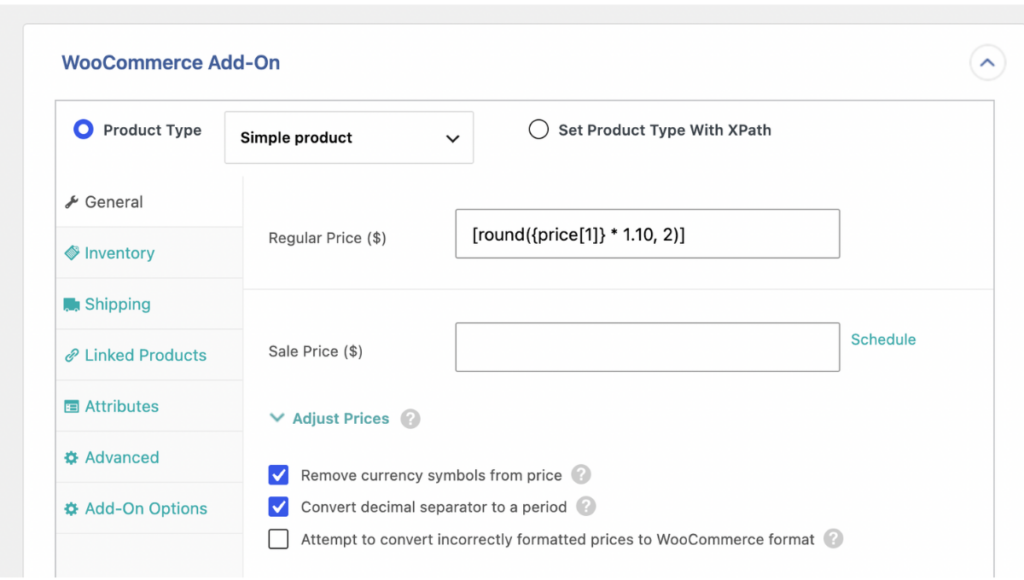
Amazon prices often reflect marketplace fees that a direct store doesn’t charge, or the reverse. In the WooCommerce Add-On panel, the Regular Price field holds {price[1]} from Automatic Setup. Replace it with [round({price[1]} * 1.10, 2)] to raise every price by 10 percent and round to two decimals.
Import Inactive Listings as Drafts
The report’s status column marks each listing as Active or Inactive. To keep inactive Amazon listings off your storefront, expand Other Product Options, select Set with XPath under Post Status, and enter:
[str_replace(“Inactive”, “draft”, str_replace(“Active”, “publish”, {status[1]}))]
The function converts each listing’s status into a WooCommerce post status, so active listings publish and inactive ones arrive as drafts.
Keep WooCommerce in Step with Your Amazon Catalog
WP All Import updates existing WooCommerce products from a newer Amazon report by matching each record on its SKU, so price and stock changes carry over without creating duplicates.
To set up your import for repeat runs, click Manual Setup on the Your Import Is Ready screen and continue to Import Settings:
- Select Attempt to match to existing WooCommerce products before creating new ones and match on the SKU.
- Check Update existing WooCommerce products with changed data and Skip WooCommerce products if their data in your file has not changed.
- To refresh only prices and stock, select Choose which data to update and limit the update to those fields.
- Check Remove or modify WooCommerce products that are not present in this import file to handle listings removed from Amazon.
For each new Amazon report, re-run the same import. We recommend loading the report from a URL or FTP location, which lets the import run on a schedule so your WooCommerce catalog refreshes without a manual upload.
Final Thoughts: Import WooCommerce Products from Amazon
Moving an Amazon catalog into WooCommerce comes down to one file and one import tool. The All Listings Report already holds the product data, and WP All Import turns it into WooCommerce products in a single import, mapping Amazon columns such as item-name, seller-sku, and quantity to the right fields automatically. A twelve-product report and a several-thousand-product report go through the same steps, since large files are processed in batches.
After the move, WP All Import keeps prices and stock levels aligned with Amazon by matching each product’s SKU and updating it from every newer report. For a first run, we suggest starting with a recent All Listings Report, previewing a few products, and checking prices and images before importing the full catalog. Once that run looks right, switching its settings to update existing products prepares the same import for every report that follows.
Common Questions About Importing Amazon Products to WooCommerce
Can I import Amazon products to WooCommerce?
Yes. WP All Import imports Amazon products to WooCommerce from the All Listings Report that Seller Central exports, mapping titles, SKUs, prices, stock levels, and image links to WooCommerce product fields automatically. The report uploads as a TXT file, and every product can be previewed on the storefront and in the WooCommerce editor before the import runs.
How do I bulk import products into WooCommerce?
WP All Import bulk imports products into WooCommerce from a CSV, XML, JSON, or TXT file in a single run. To bulk import products:
- Go to All Import > New Import and click Set up automatically.
- Upload the product file and select WooCommerce > Products.
- Click Start Automatic Setup and review the Field Mappings on the Your Import Is Ready screen.
- Click Preview to check the products in Frontend View and WP Admin View.
- Click Run Import and confirm the created product count in the import summary.
How do I sync Amazon inventory with WooCommerce?
WP All Import syncs Amazon inventory with WooCommerce by updating existing products from each new listings report. To set up the sync:
- Upload the Amazon report through Set up automatically on the All Import > New Import screen.
- Click Manual Setup on the Your Import Is Ready screen and continue to Import Settings.
- Select Attempt to match to existing WooCommerce products before creating new ones and match on the SKU.
- Check Update existing WooCommerce products with changed data, then use Choose which data to update to limit updates to price and stock.
- Load each new report from a URL or FTP location and schedule the import.
How do I import Amazon affiliate products into WooCommerce?
To import Amazon affiliate products into WooCommerce, use a product file that includes each item’s Amazon affiliate link, then import it with WP All Import. Automatic Setup maps the link to the Product URL field and the button label to Button Text, but it assigns the External/Affiliate product type only when the file has a product-type column. Without one, open Manual Setup and set the product type to External/Affiliate before running the import.