
The 5 Best Plugins to Export WooCommerce Variable Products
WooCommerce stores a variable product as two records. The parent product holds the title, description, categories and the attribute list. Every buyable combination sits in a child variation with its own SKU, price and stock count. If you export the catalogue as one row per product, the variations leave the file behind.
We ran five WooCommerce variable product export plugins on a staging copy of a store to see what each one does with the split data. All five handle WooCommerce variable products but they vary on what a WooCommerce variable product file looks like afterwards.
WP All Export
WP All Export is our top pick of the best plugins for exporting WooCommerce variable products because its Product Variations setting writes parents and variations into one file, variations alone, or parents alone. Every variation row carries a Parent Product ID back to its parent record, so the file survives a spreadsheet edit and a re-import, with CSV, Excel, XML, and Google Sheets all supported.
Visit WP All Export →We built a staging copy of one store running WooCommerce 11.2, WordPress 7.1.4, and PHP 8.5. The catalog held 640 products, 118 of them variable products with 1,614 variations between them.
Each of the five plugins exported the same catalog. We compared and scored them on four things: whether variations landed on their own rows, whether the file included a parent link column, and whether per-variation SKU, price, stock, and attribute terms were available as export fields.
The fourth was whether the export could repeat on a schedule, since a variable product file that has to be rebuilt by hand every time falls out of step with the store.
What We’ll Cover
- What Makes a Variable Product Export Different
- The 5 Best Plugins to Export WooCommerce Variable Products
- 1. WP All Export
- 2. WooCommerce’s Built-In CSV Exporter
- 3. Product Import Export for WooCommerce
- 4. Store Exporter
- 5. WP Sheet Editor
- Which WooCommerce Variable Product Export Plugin Should You Choose?
- Common Questions About Exporting WooCommerce Variable Products
What Makes a Variable Product Export Different
WooCommerce never stores a variable product as one record. The parent holds what does not change: title, description, categories, and the attribute terms the product offers. Each variation holds what does change, one record per buyable combination, with its own SKU, price, sale price, stock level and image.
That split is what a plain product export misses. A file built from parent records alone reports a price range instead of prices, and no stock count at all, because those numbers belong to the children. A supplier reading that file cannot tell Red/Large from Blue/Small.
Attributes split the same way. The parent row carries every term for an attribute in a single cell, while each variation row carries the one term that makes it that variation. An export that writes one term per row without the parent’s full list, or the parent’s full list on every row, loses the shape of the product.
A good variable product export plugin therefore has three properties: a row for every variation, the parent’s identity repeated on each of those rows, and the variation’s own price, stock and image in columns of their own. The plugins below deliver those three in different ways, and they do not agree on what to call the parent column.
The 5 Best Plugins to Export WooCommerce Variable Products
All five variable product export plugins write variation rows. What separates them is how much of a variable product’s row you control.
1. WP All Export
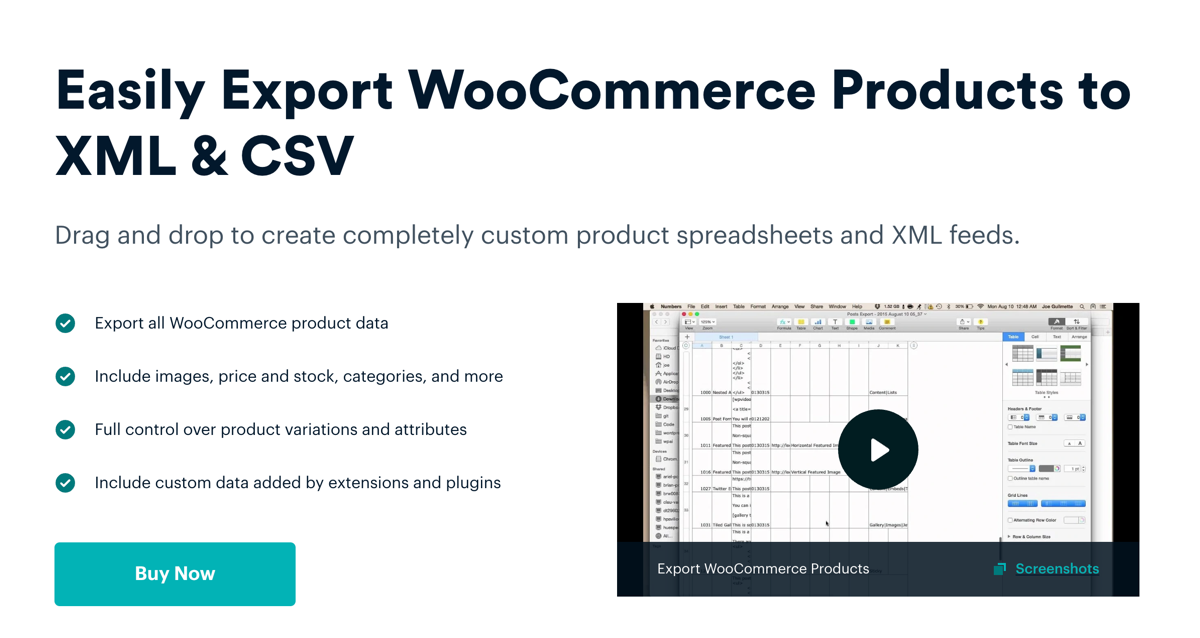
WP All Export treats WooCommerce variable products as a data type rather than a filter you work around. Go to All Export › New Export and select WooCommerce Products from the list. Add Filtering Options on the next page takes Product Type, In Product Type, variable, which removes simple products before a single row is written.
The Customize Export File page opens the Drag & Drop screen, with Available Data on the right, the column area on the left and Preview underneath. Product attribute fields are already selected for variable products, so the variation columns appear without any setup. Advanced Options on that same screen holds the setting that decides how the file is shaped: Product Variations offers parents with variations, variations only, or parents only, and the two variation modes choose between the parent title and the variation’s default title.
Where it stands apart:
- Parent Product ID, under Available Data › Standard, writes the parent post ID on each variation row and 0 on parents.
- The Attributes element creates five columns per attribute: name, value, used for variations, visible and taxonomy.
- Output covers CSV, Excel, a Custom XML Feed with nested variation nodes, and Google Sheets.
- Scheduling Options on the Export Settings screen repeat the run, beside batch size and split-file settings.
- The Bundle download pairs the file with a matching import template for the trip back.
Pricing:
- WP All Export with WooCommerce add-on starts from $169/year.
- The licence covers the WooCommerce variation fields and the Product Variations control.
- Scheduling through WP Cron or a server cron job costs nothing.
2. WooCommerce’s Built-In CSV Exporter
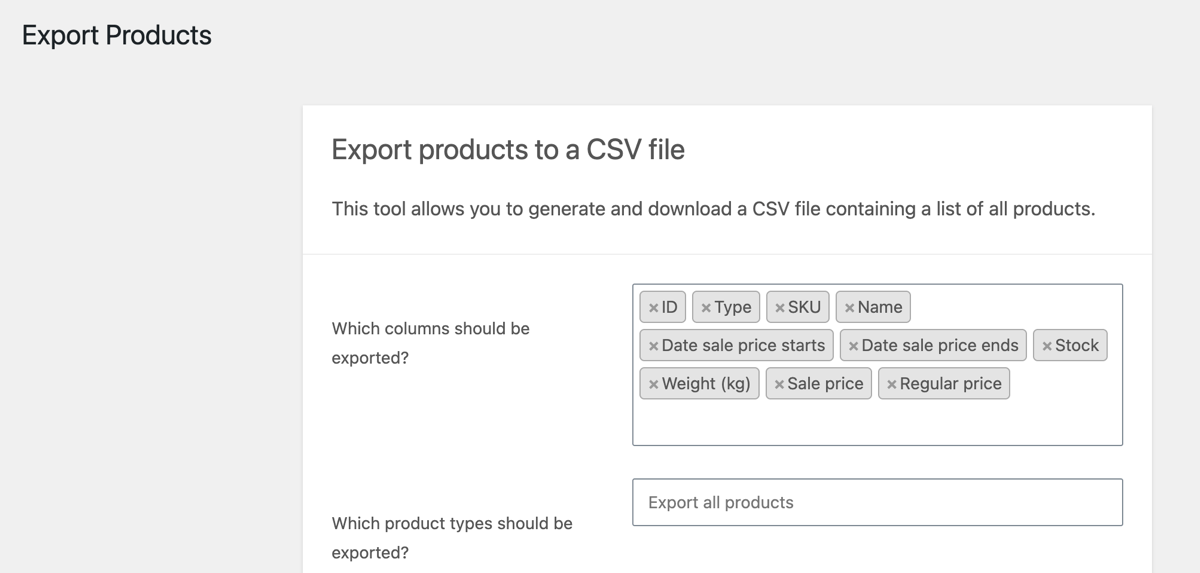
The WooCommerce core exporter is one button. Products › All Products › Export opens Export products to a CSV file, which asks for columns, product types, categories and custom meta, then Generate CSV writes the file.
A blank type field exports every product type, parents and variations together. To narrow it, the list gives you five selection options: Simple product, Grouped product, External/Affiliate product, Variable product and Product variations. For a variable product export, choose both Variable product and Product variations. Tick products in the All Products list before clicking Export and the type and category fields are hidden, because only that selection gets written.
The file follows the WooCommerce import schema. Parent rows carry Type set to variable and every term in Attribute 1 value(s); variations carry Type set to variation, their own SKU, and Parent filled with the parent SKU or id:123. Export custom meta? stays off by default and adds meta: columns when switched on.
It doesn’t support other file formats, and doesn’t come with a saved template and scheduling, so a repeat run means setting the same fields again.
Pricing:
- Free. Included with WooCommerce.
3. Product Import Export for WooCommerce
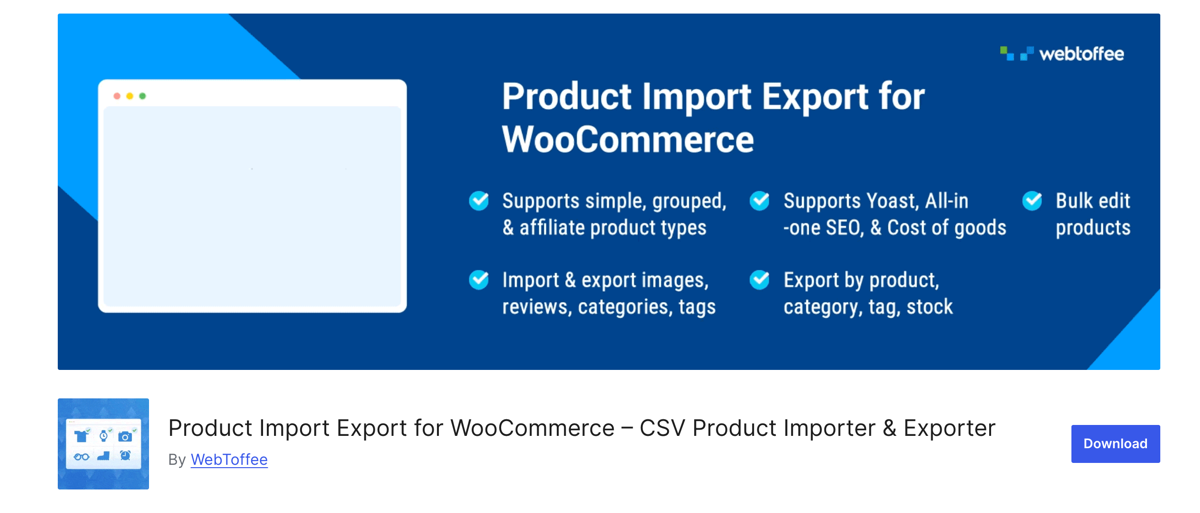
WebToffee runs the export as a five-step wizard inside WebToffee Import Export (Pro) › Export. Step one is the post type, where you choose Product, step two picks the export method, step three applies filters, and step four maps and reorders the columns. Step five holds the file options, with batch and scheduling settings alongside them.
You get variable products as one block of rows. Vendor documentation states that variants are exported consecutively beneath their parent, with the parent SKU and ID repeated on each variant row, and the Sort Column field changes the order inside that block. The format is also set in step five, where CSV, XML, TSV, XLS and XLSX are available, next to the FTP delivery option.
Only the paid licence covers variable products. The free plugin on WordPress.org handles simple, grouped and external products, and the premium licence runs $69/year for one site, $129 for five, $249 for 25.
4. Store Exporter
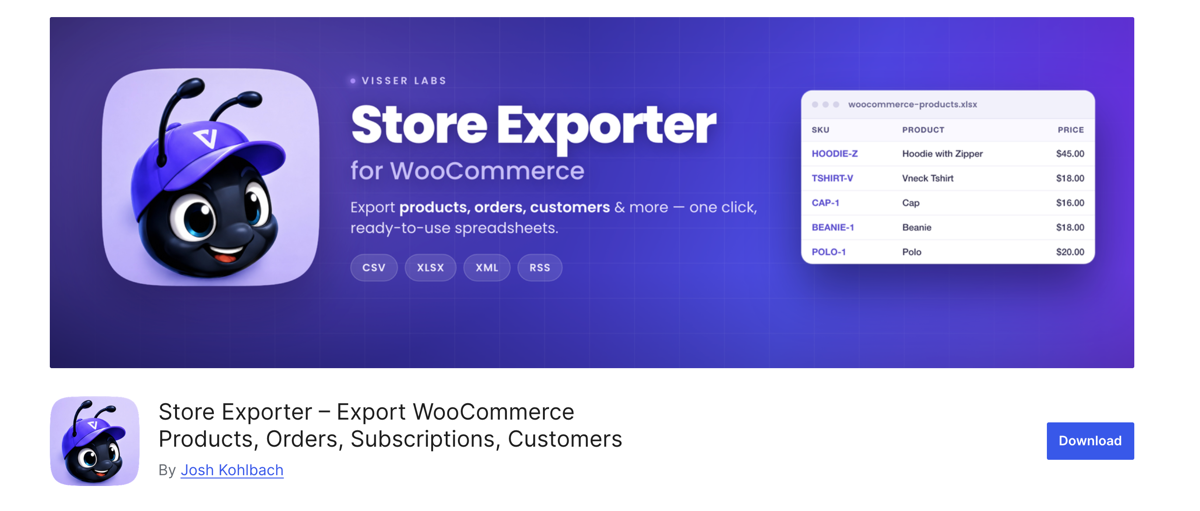
Store Exporter opens on its Quick Export flow, which runs as four steps. Select Export Type puts each data set on a tile, and the Products tile shows a live count of matching records, so the size of the run is known before you commit. Export Fields then shows the columns as chips you can rename or remove, with Parent ID, Parent SKU, Type and Product SKU among the fields available.
The filter that decides whether variations reach the file sits on Filters & Sorting. Product Types lists Simple, Variable, Grouped, External and Variation, and Variation has to be added deliberately. Vendor documentation names that unticked box as the most common reason a variable product export comes back with parents only.
Export Options is where the format is set. CSV is free, and Store Exporter Deluxe adds TSV, XLS, XLSX and XML, scheduled exports, saved templates, FTP and email delivery, and native fields from more than 125 plugins, for $49/year on one site.
5. WP Sheet Editor
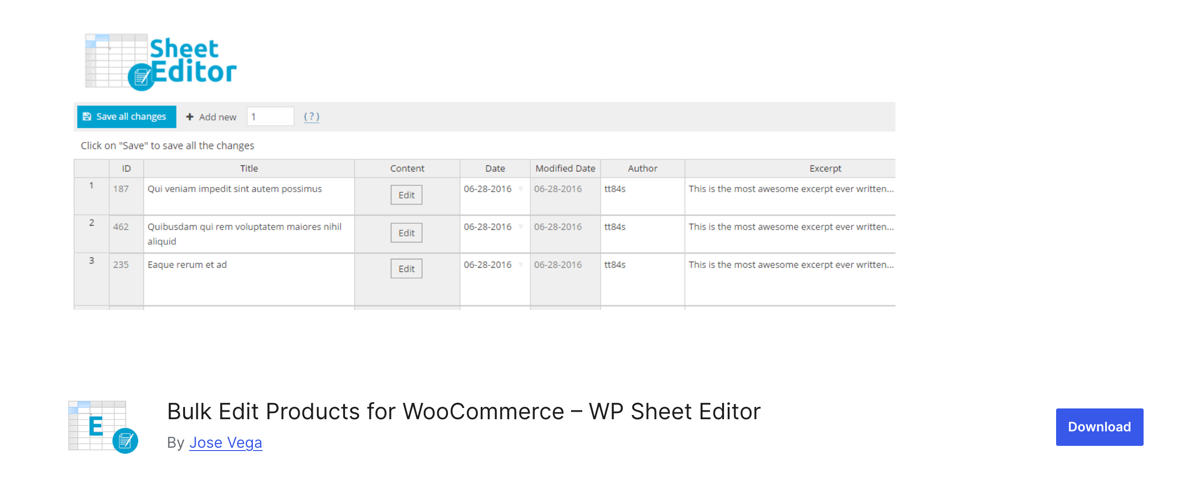
This plugin inverts the workflow: you work in the grid first and take a file from it afterwards. Go to WP Sheet Editor › Edit Products, where the WooCommerce catalogue opens as a spreadsheet inside wp-admin, then open the Search tool. Ticking Search on variations and running the search brings parent products and their child variations into view together, each variation on its own row beneath its parent.
The Export tool then asks for columns, rows and a target app. Choose all rows from the current search to carry the filtered set into the file, and give the export a name if you plan to run it again, since a saved name restores the same configuration later. A Type column marks parent rows as variable and child rows as variation, which keeps the two apart once the file leaves WooCommerce. Output is CSV, or Excel from version 2.26.0 onward.
Editing and exporting variable products sit in the premium license, and the free plugin ships without the Export tool altogether.
Pricing:
- Premium from $49.99/year for one site, $59.99 for two, $119.99 for five, $199.99 for unlimited.
- Lifetime licence at $119 for one site, $149 for two, $299 for five.
- The premium licence is what unlocks variable products, variations and the Export tool.
- Google Sheets Sync is billed separately from the plugin licence.
Which WooCommerce Variable Product Export Plugin Should You Choose?
A variable product is one product on the storefront and two records in the database, which is why an export comes down to the parent link. Every WooCommerce variable product export plugin here keeps that link in some form. What separates them is what you can do with the rest of the row.
For a first export, WP All Export takes the least setting up. Choose WooCommerce Products, filter to variable products if you only want those, and the variation columns are already in place. The Product Variations setting under Advanced Options decides whether parents, variations or both end up in the file, and Preview shows the rows before you commit. The Bundle download even returns an import template for the trip back.
For a larger catalogue with a supplier feed to keep in step, the same plugin covers the work without a second tool. Five attribute columns per attribute, Parent Product ID on every child row, nested variation nodes in a Custom XML feed, and scheduling on the Export settings screen.
The other four fit narrower cases. WooCommerce’s built-in exporter handles one free file, Product Import Export walks you through a wizard, Store Exporter adds Excel and XML, and WP Sheet Editor exports from a grid you can edit. None of them covers both ends of that range, which is why WP All Export is the one we recommend for beginners and for stores that have outgrown a quick CSV.
Common Questions About Exporting WooCommerce Variable Products
How do I export WooCommerce variable products?
Go to Products › All Products › Export and download the catalogue as CSV; every variation is written as its own row with Type set to variation. For more control, WP All Export adds the Product Variations setting under Advanced Options, which writes parents, variations, or both.
Why are my WooCommerce product variations missing from the export?
A WooCommerce product type filter or a plugin variation setting is excluding them. In Store Exporter, Variation must be added to the Product Types filter. The core exporter includes variations by default, so a missing set of variable products points to another plugin or a custom query.
Does the WooCommerce CSV export include variations?
Yes. One row is written per parent product and one per variation, with the Parent column holding the parent SKU or an id reference so the link survives a re-import.
Can I export only variations without the parent products?
Yes. In WP All Export, open Advanced Options on the Drag & Drop screen and choose Only export product variations. Parent rows drop out and each variation of the variable product keeps its own SKU, price and stock.
Which format should I export WooCommerce variable products to?
CSV for spreadsheet edits and re-imports, Excel when the file goes to a colleague, XML when a marketplace feed expects nested nodes. WP All Export writes all three, plus Google Sheets.
Is there a free way to export variable products?
Yes. The WooCommerce CSV exporter is free and includes variations. WebToffee and WP Sheet Editor, both paid plugins, restrict WooCommerce variable products to their premium licences, while WP All Export needs Pro for its variation fields.