
The Fastest Way to Import WooCommerce Orders from Excel
On paper, an Excel import of WooCommerce orders looks like the easiest job on the list. The workbook is already tidy, with one order per row and every detail in its own column. Then it turns out WooCommerce has no order importer, and the product importer it does have only reads CSV. Saving the workbook as CSV gets the file accepted, but dates come through as five-digit numbers and totals land as text that no report can add up.
There is a faster and more accurate route. WP All Import imports WooCommerce orders directly from .xlsx and .xls workbooks, so nothing needs converting. Once the file is uploaded, Automatic Setup in WP All Import maps every Excel column to its order field, and the first thing we review is a preview of real orders. In this guide, we’ll run a full import and show you how to make the next one even faster.r.
What We’ll Cover
Why Excel Order Imports Run Slow in WooCommerce
WooCommerce ships with a product importer and nothing extra for orders. That importer only reads CSV files, so an Excel order file has no direct way into the store. Most stores end up building a workaround, and each part of that process adds time to the import.
The table below tracks where the hours go in a typical Excel order import and how we avoid each one.
| Where the time goes | What it breaks | How we skip it |
|---|---|---|
| Converting the Excel workbook to CSV | Order numbers and postcodes lose their leading zeros, and date columns lose their formatting | WP All Import reads .xlsx and .xls files directly, so the workbook never gets converted |
| Mapping columns manually | Each order field gets matched one at a time, and mistakes only show up after the import | Automatic Setup in WP All Import maps Excel columns to WooCommerce order fields automatically on upload |
| Fixing orders after they land | Orders with missing customers or unlinked products need to be edited one by one | WP All Import’s preview shows each order in the WooCommerce admin layout before anything is saved |
| Running the file a second time | Every row creates a new order, so the order history doubles | Setting the original order number as the Unique Identifier in WP All Import updates existing orders in place |
The conversion row does the most damage because most of the later fixes trace back to it. An order number like 00417 that comes through as 417 no longer matches the old system, so nobody can check that order against its original record.
The Fast Route: Automatic Setup in WP All Import
Automatic Setup in WP All Import reads an Excel workbook and matches its columns to WooCommerce order fields before we touch a single setting. The entire import takes four steps, and most of our time goes into checking the results rather than building it.
Upload the Workbook As Excel Saved It
Go to All Import › New Import and click the Set up automatically callout at the top of the screen. The manual import options sit just below it, and we leave those alone for now.
The Upload File tab takes the .xlsx file straight from your computer. When the workbook lives somewhere else, the Download from URL and FTP/SFTP tabs bring it in directly. At no point do we make a CSV copy, so order numbers and dates stay exactly as they were entered.
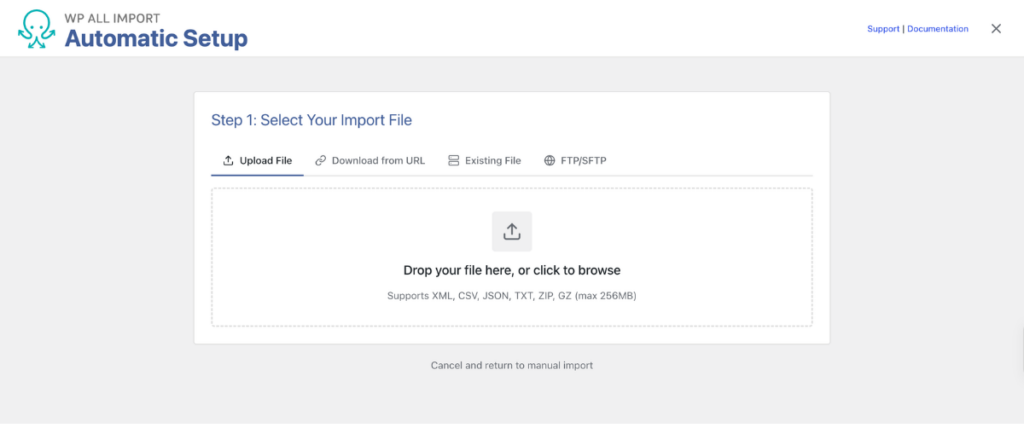
Point Automatic Setup at WooCommerce Orders
Under Choose What to Import, click WooCommerce, then Orders. That choice tells WP All Import to read each Excel row as an order record instead of a product.
Most workbooks do not need anything more. When a column name does not give any clear clue about what it holds, open Add Setup Instructions and add one note per line in the placeholder’s format:
- ‘The Contact column holds the customer email’
- ‘The Ref column is the original order number’
Click Start Automatic Setup and accept the data processing notice, and a progress bar tracks the analysis.
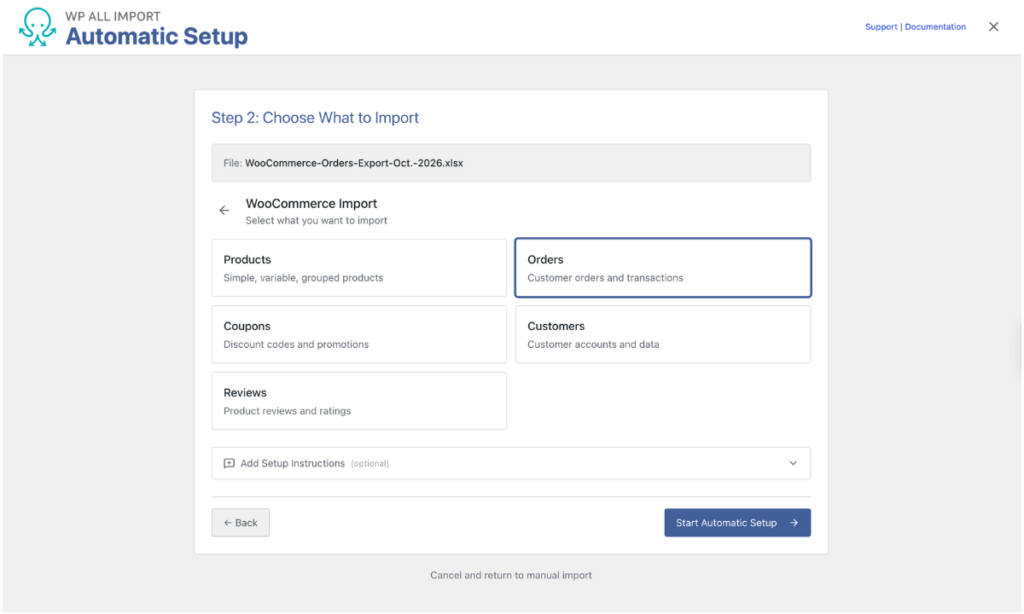
Scan the Your Import Is Ready Card
When the analysis finishes, the Your Import Is Ready card shows how many order records it found and how many fields it mapped from the Excel file. We compare that record count with the number of rows in the workbook first. A match confirms that each row came through as one order, with its line items still together.
Then we expand Field Mappings and start with the customer email and line items columns, since those two decide whether an order links to the right buyer and the right products. If a column landed in the wrong field, Manual Setup opens the template editor with every automatic mapping already filled in, so only the wrong one needs changing.
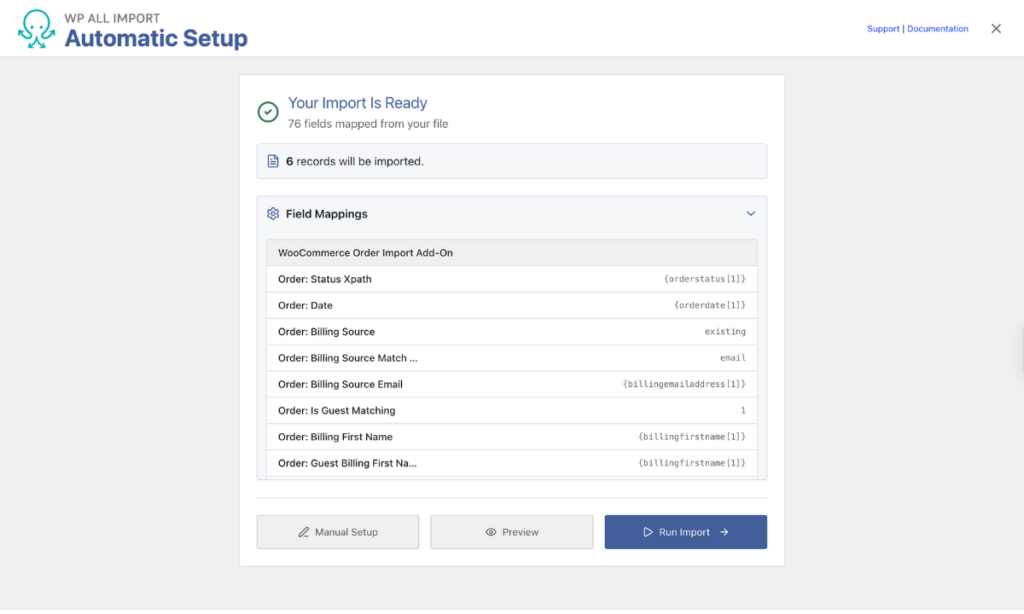
Preview the Hardest Order, Then Run
Click Preview. WP All Import renders each order in WP Admin View, the same edit screen WooCommerce uses for a real order, with the billing address and line items already in place. We use the arrows above the preview to skip ahead to the most complex order in the file, usually the one with the most line items, because it is the order most likely to expose a mapping mistake.
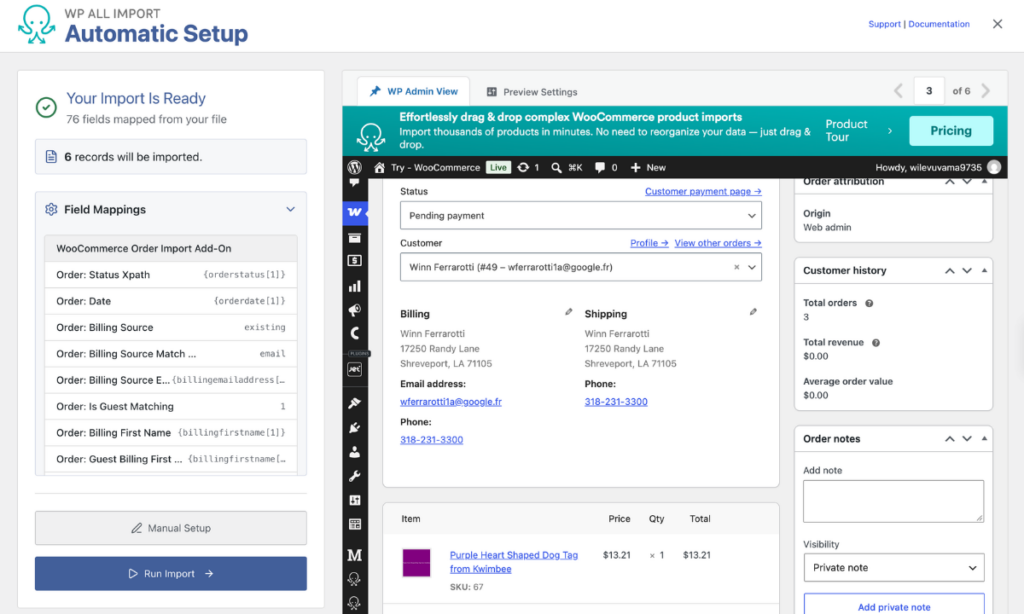
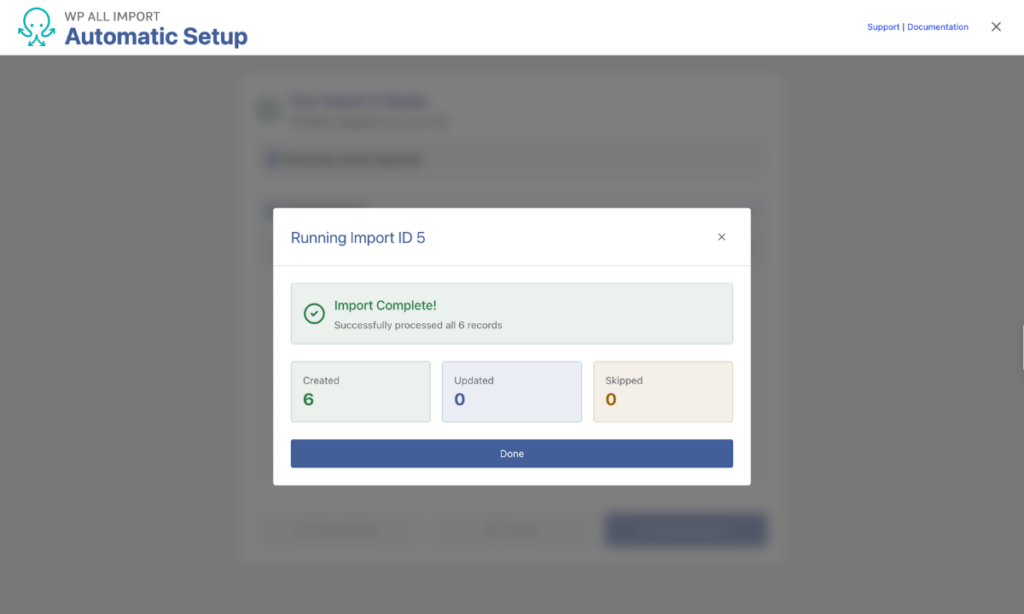
Click Run Import once the preview looks right. WP All Import processes the Excel file in batches, so a long order history finishes without hitting a server timeout. The completion screen reports Created, Updated, and Skipped counts, and on a first run the Created number should match the record count from the summary card.
What to Check Before Thousands of Orders Land
Automatic Setup gets the mapping most of the way there, and the preview is where we confirm it. A few minutes spent on the busiest orders in the file costs far less than editing hundreds of them in WooCommerce afterward. These are the four checks we run before every Excel order import.
- Line items stay on one order. Every product listed in the workbook’s items cell should appear on the same order in WP Admin View. WP All Import links each purchased product to its catalog record by SKU or product ID.
- The customer is attached. An order whose email matches an existing account shows that customer on the edit screen. WP All Import saves orders with no matching account as guest purchases, which is great for old orders from shoppers who never registered.
- Totals read as numbers. The order total should show as a plain amount in the store’s currency, with no symbols or separators carried over from Excel.
- Dates and statuses hold. A completed order from 2024 should still read as completed and still carry its 2024 date.
How should line items look in an Excel order file?
Each order keeps all of its line items in one cell. Every item lists its SKU, quantity, and total separated by pipes, and a semicolon separates one item from the next:
sku:ceramic-mug|quantity:2|total:24.00;sku:tea-tin|quantity:1|total:9.50
The Order Items section in WP All Import reads that cell and turns it into two line items on a single WooCommerce order.
Making Every Re-Import Faster
A WooCommerce order spreadsheet rarely gets imported only once. Refunds and status changes keep the workbook changing after the first run, so the same Excel file often comes back for another import. These settings make each return trip quicker than the last.
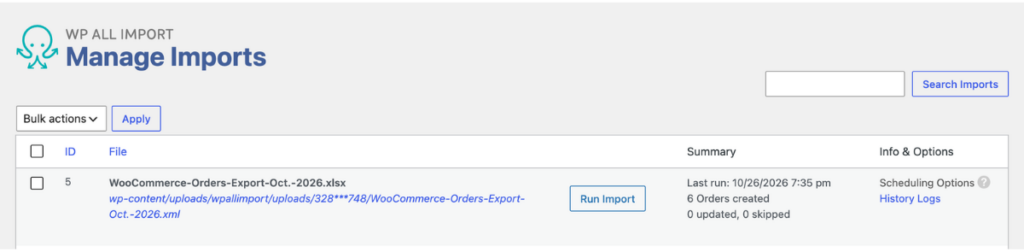
- Reuse the saved import. WP All Import saves every import under All Import › Manage Imports, so the next Excel file runs through the same field mappings without requiring another round of setup.
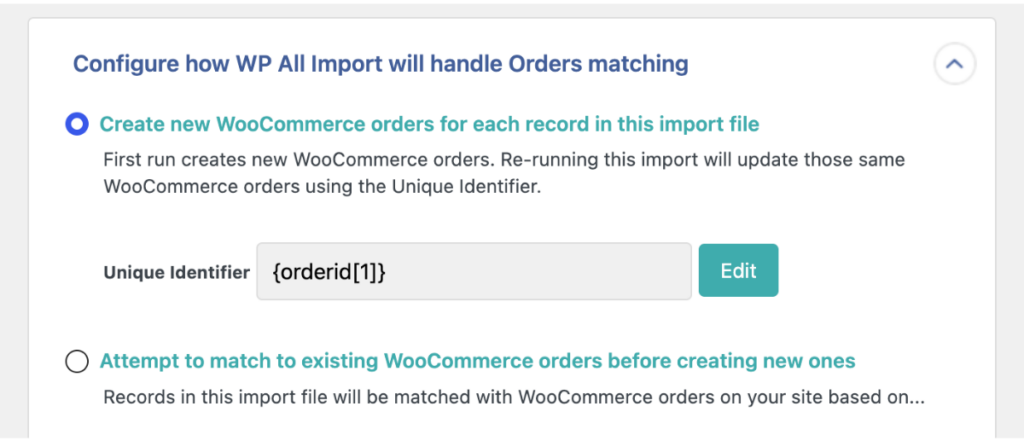
- Update orders instead of duplicating them. Through Manual Setup, open the Import Settings screen and set the original order number as the Unique Identifier. Re-running the import then updates matching WooCommerce orders in place, and the completion screen counts them as Updated rather than Created.
- Pull the file from where it lives. Importing from a URL or an FTP/SFTP server lets WP All Import fetch the latest version of the workbook on every run, so nobody has to download and re-upload it.
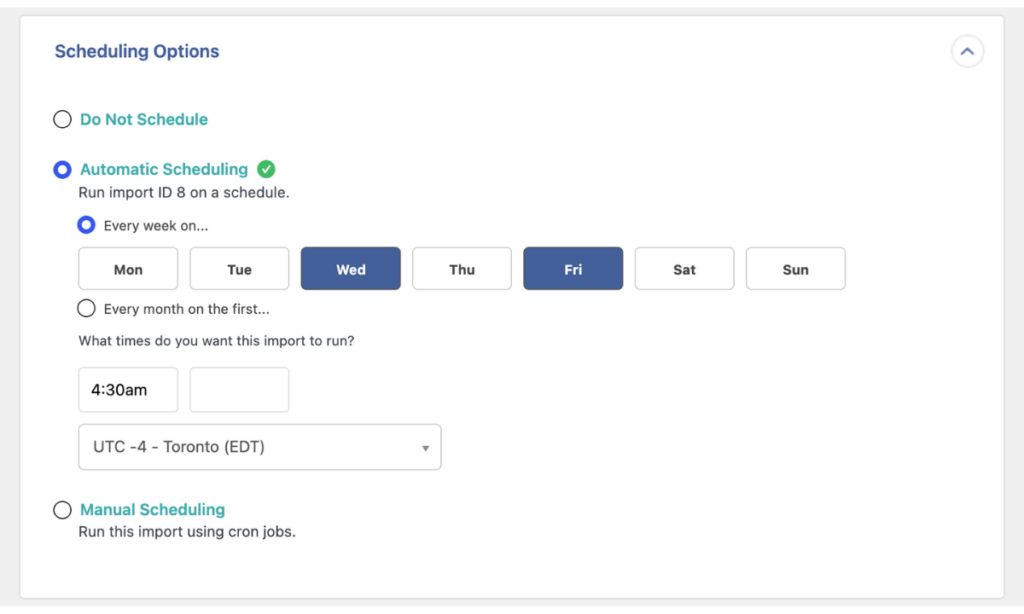
- Put the import on a schedule. WP All Import runs saved imports automatically through server cron jobs or the paid Automatic Scheduling service, which costs $19 per month for unlimited sites and is set up from inside the plugin.
Final Thoughts: Fastest Way to Import WooCommerce Orders from Excel
The fastest way to import WooCommerce orders from Excel is to skip the CSV conversion entirely and upload the workbook to WP All Import as it is. Most of the time lost in a typical Excel order import traces back to that conversion or to the cleanup it causes afterward, and a direct import removes both.
WP All Import reads .xlsx and .xls workbooks natively and imports each row as a complete WooCommerce order, with line items linked by SKU or product ID and customers matched by email. Automatic Setup maps those order fields on upload, and the preview shows each order in the WooCommerce admin before anything is saved. After the first run, the saved import and an order-number Unique Identifier turn every update to the spreadsheet into a quick re-run of the same import, saving you valuable time and effort.
Common Questions About Importing WooCommerce Orders from Excel
Does WooCommerce have a built-in order importer?
No. WooCommerce has no built-in order importer, and its native importer only brings in products from CSV files. WP All Import adds a complete order import to WooCommerce and reads Excel workbooks directly, including line items, billing and shipping details, order statuses, and original order dates.
How do I import WooCommerce orders from an Excel file?
To import WooCommerce orders from an Excel file, use WP All Import, which reads .xlsx and .xls workbooks without a CSV conversion step. Here’s how:
- Go to All Import › New Import and click Set up automatically.
- Upload the workbook in the Upload File tab.
- Under Choose What to Import, select WooCommerce, then Orders.
- Click Start Automatic Setup.
- Check the Field Mappings on the Your Import Is Ready card, then click Preview.
- Click Run Import.
How do I avoid duplicate orders when re-importing an Excel file?
WP All Import updates existing WooCommerce orders instead of duplicating them when the same Excel file is imported again. To set this up:
- Click Manual Setup on the Your Import Is Ready card and continue to the Import Settings screen.
- Set the original order number column as the Unique Identifier, or click Auto-detect.
- Turn on the option to update existing orders with changed data from the file.
- Run the import. Matched orders appear under Updated on the completion screen instead of Created.
Can I import orders with several products from one Excel row?
Yes. WP All Import imports an order with several products from a single Excel row when all of its line items share one cell, with each item’s SKU, quantity, and total separated by pipes and a semicolon between items. The Order Items section matches every product to the catalog by SKU or product ID and adds them all to the same WooCommerce order.