
The Fastest Way to Import WooCommerce Orders from XML
Every record in a WooCommerce order XML file carries a customer, a nested list of products, a shipping line and a total, and the import has to land each piece in the right place. None of that requires changing the file first. Editing an order XML so every product sits in its own column is what slows these imports down.
WP All Import reads nested order XML directly and imports each WooCommerce order with its products attached as separate line items, linked to the matching store products by SKU. As soon as the file is uploaded, Automatic Setup in WP All Import maps the standard order fields, and the preview shows each order on WooCommerce’s Edit Order screen before anything is saved. The steps below follow our own eight-order test file, including the few values we mapped manually.
What We’ll Cover
- What Flattening Does to a Nested XML Order
- Run the Order XML Through Automatic Setup
- XML Quirks You Can Fix Without Editing the File
- Keep the Order Feed Importing on Its Own
- Final Thoughts: The Fastest Way to Import WooCommerce Orders from XML
- Common Questions About Importing WooCommerce Orders from XML
What Flattening Does to a Nested XML Order
In an XML export, each order is one self-contained block. The customer, shipping line and total sit beside a list of products that grows or shrinks with the order. Order importers built around spreadsheets want something flatter, and getting there means changing the file in one of two ways.
- Flattening the XML into a CSV. Each order is squeezed onto one row, and its products are split across numbered columns like item_1_sku and item_2_qty. The order with the most products sets the column count for every row. Three products with five details each comes to 15 product columns, and a one-product order leaves 10 of them blank.
- Rewriting the XML to a sample layout. Some order import plugins supply a sample XML file and ask for yours to follow it. That means renaming elements and moving data around until the two structures match.
<Order id="5103" status="completed">
  <Placed>21.09.2026 11:03</Placed>
  <Customer>…</Customer>
  <Lines>
    <Line sku="93" qty="1">
      <Name>Orange Rectangle Dog Tag</Name>
      <UnitPrice>36.26</UnitPrice>
      <LineTotal>36.26</LineTotal>
    </Line>
    <Line sku="95" qty="1">…</Line>
    <Line sku="100" qty="3">…</Line>
  </Lines>
  <Delivery method="Flat rate" cost="12.00"/>
  <GrandTotal currency="USD">136.83</GrandTotal>
</Order>
| order_ id |
item_1_ sku |
item_1_ name |
item_1_ qty |
item_1_ price |
item_1_ total |
item_2_ sku |
item_2_ name |
item_2_ qty |
item_2_ price |
item_2_ total |
item_3_ sku |
item_3_ name |
item_3_ qty |
item_3_ price |
item_3_ total |
|---|---|---|---|---|---|---|---|---|---|---|---|---|---|---|---|
| 5103 | 93 | Orange Rectangle Dog Tag | 1 | 36.26 | 36.26 | 95 | Orange Mini Dog Tag | 1 | 22.36 | 22.36 | 100 | Pink Heart Shaped Dog Tag | 3 | 22.07 | 66.21 |
| 5102 | 94 | Orange Jumbo Dog Tag | 1 | 21.13 | 21.13 |
Both edits come back with every new export, and both make room for small mistakes, such as a quantity ending up in the wrong product’s column. WP All Import maps nested order XML element by element and keeps each order’s product list intact, so neither edit is needed.
Run the Order XML Through Automatic Setup
Go to All Import › New Import in your WordPress dashboard and click the Set up automatically callout at the top of the screen. Automatic Setup takes the order XML in whatever layout your source system produced.
Pull the File Straight From Its Source
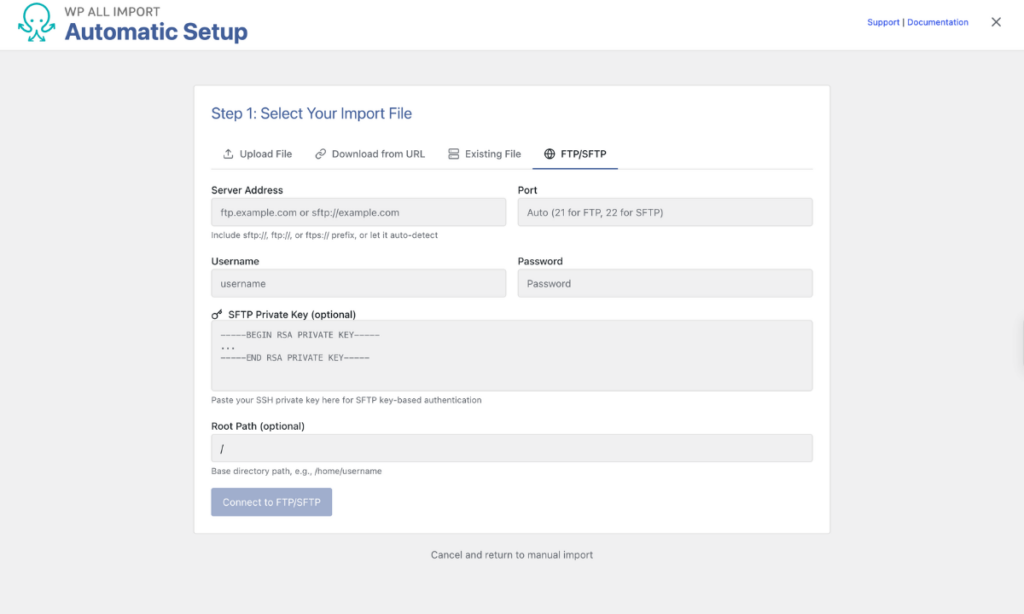
The Upload File tab takes an XML file from your computer, but order exports often live somewhere else. Download from URL fetches the file from a web address, and FTP/SFTP pulls it from a server, which removes the download-and-reupload step entirely. WP All Import accepts XML order files up to 256 MB through any of these sources.
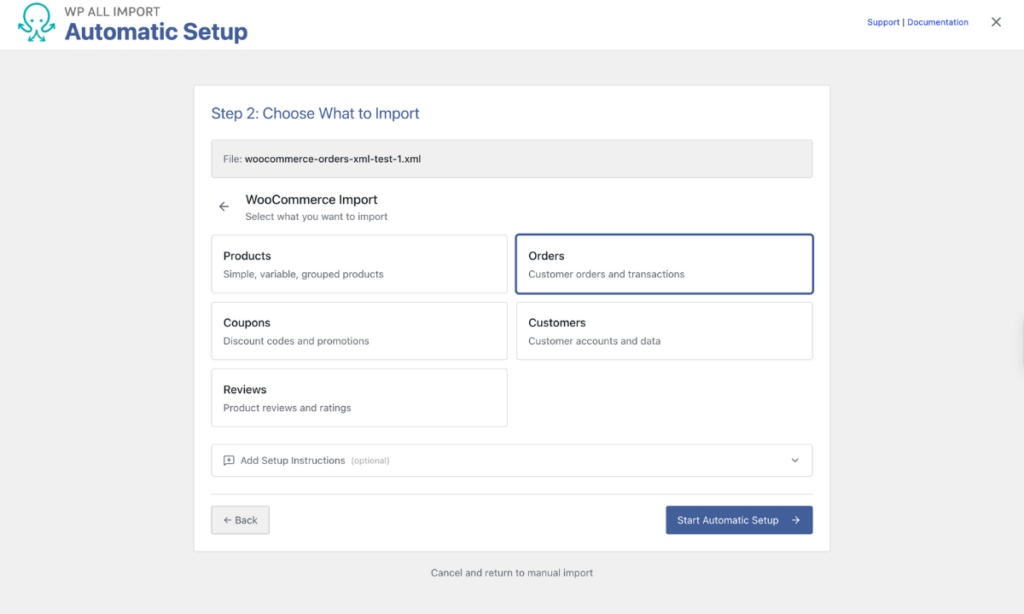
Choose WooCommerce › Orders and Add One Line of Context
Under Choose What to Import, click WooCommerce, then Orders. The optional Add Setup Instructions box is worth a few seconds when an element name could be read more than one way. Our file stores the final amount in <GrandTotal>, so we added a single note:
- ‘GrandTotal includes shipping’
Click Start Automatic Setup, then I Understand, Continue.
Match the Record Count to Your Order Count
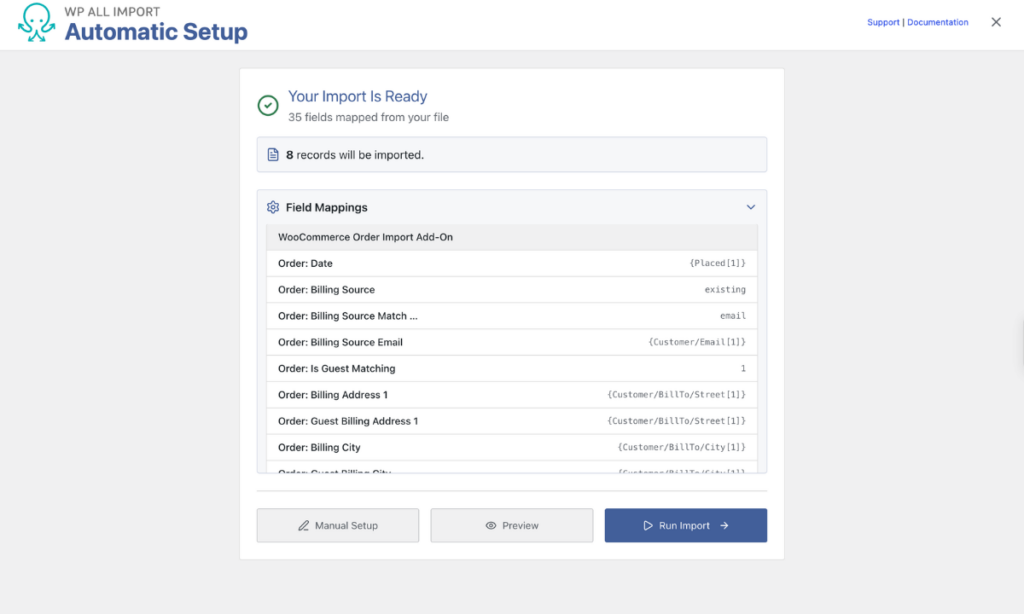
The Your Import Is Ready screen opens with two numbers. Ours read 31 fields mapped from your file and 8 records will be imported, one record for each order in the XML. WP All Import counts every order element as a single import record, even when that order holds several products, so a record count that matches your order count confirms the file was read correctly.
Expand Field Mappings to see where each XML element landed. The order date, customer email and billing address all sit under the WooCommerce Order Import Add-On group. WP All Import matches each imported order to an existing customer by email and brings in any order without a match as a guest order.
Check One Order Against the Source File, Then Run
Click Preview. The WP Admin View tab loads each order into WooCommerce’s own Edit Order screen, and the arrows at the top step through the file one order at a time. Pick an order and compare it with its XML record. Ours showed the billing and shipping addresses, email, phone and customer note exactly as the file wrote them. Our order dates were written day-first, as in 14.10.2026, and WP All Import stored them correctly as 2026-10-14.
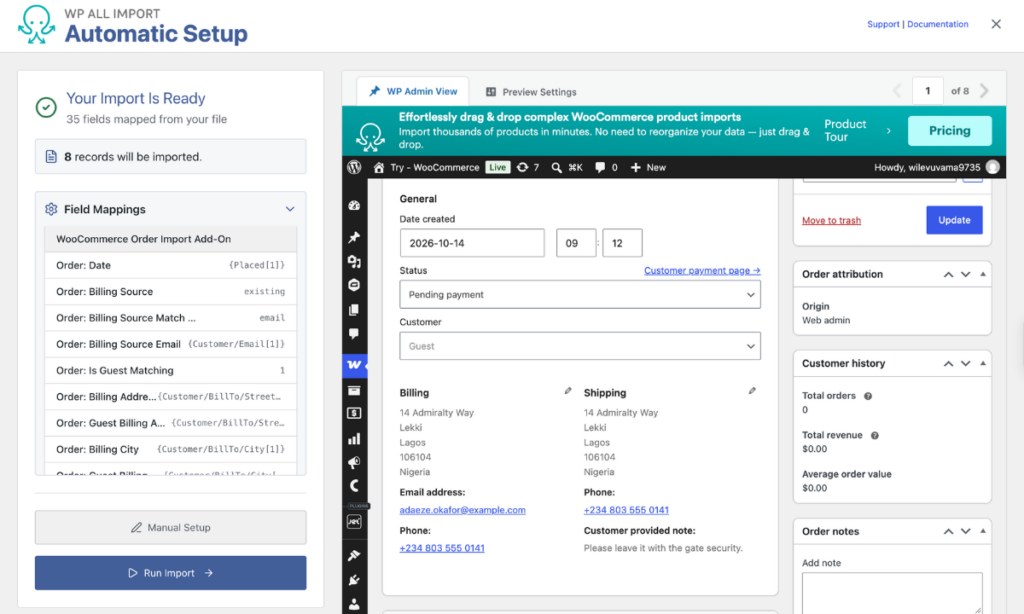
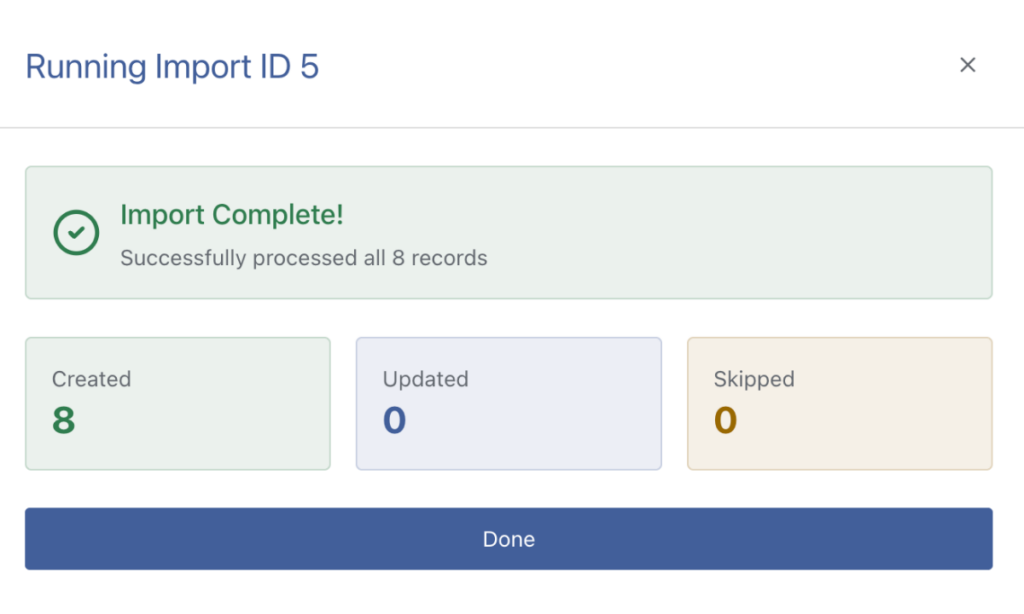
Click Run Import once the preview matches your file. Our run finished with 8 created, 0 updated and 0 skipped, matching the record count from the summary screen.
XML Quirks You Can Fix Without Editing the File
Some XML order exports keep their values inside attributes or repeat products within each order, and those layouts need a few fields set by hand. Click Manual Setup on the Your Import Is Ready screen to set them. Manual Setup in WP All Import keeps every mapping Automatic Setup already made, so the XML file stays untouched and only the remaining fields need attention.
[TABLE: styled-table]
| What our XML had | Where it goes in Manual Setup | What we entered |
|---|---|---|
| status=”completed” on each order | Order Details › Order Status › Set with XPath | {./@status} |
| method=”paypal” on the payment element | Billing & Shipping Details › Payment | {Payment/@method} |
| Shipping name and cost as attributes | Order Items › Shipping | {Delivery[1]/@method}, {Delivery[1]/@cost} |
| Repeating <Line> elements | Order Items › Products › Variable Repeater Mode (XML) | For each {Lines[1]/Line} |
| Full name in one <FullName> element | Billing › First Name / Last Name | Two Function Editor functions |
WP All Import reads values stored in XML attributes through XPath, so a status written as status=”completed” imports as a completed WooCommerce order. The Products row does the heavy lifting here. Variable Repeater Mode (XML) turns each repeating product element into a separate WooCommerce line item, linked to its store product by SKU.
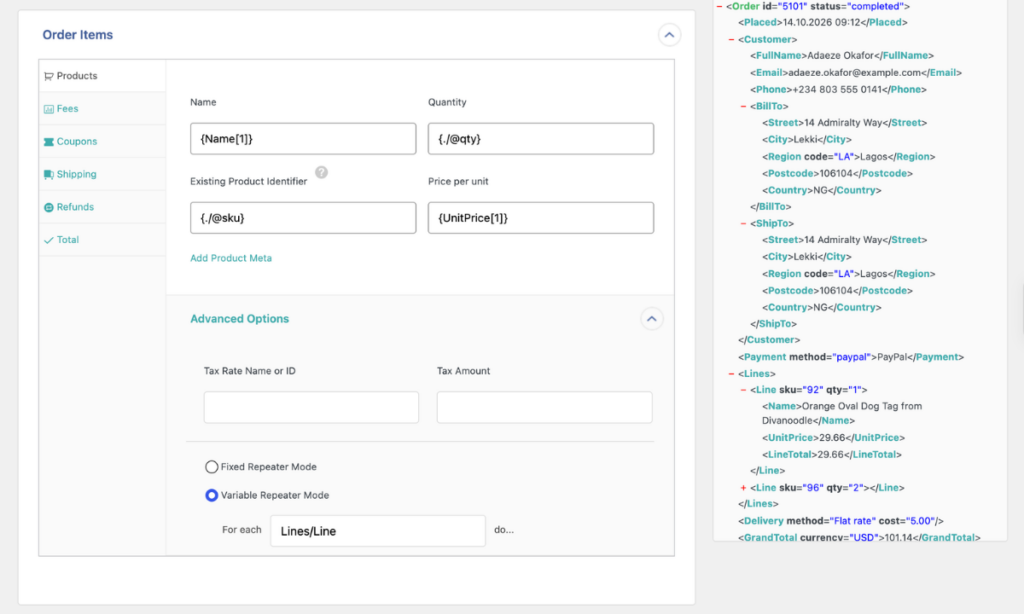
Our three-product test order came through with each item on its own line, a Flat rate shipping line and the same $136.83 total the XML recorded.
What exactly did we enter in Manual Setup?
Order Items › Products (Variable Repeater Mode)
Type these values instead of dragging them. Inside the repeater, every path is read from the current <Line> element.
Lines/Line{Name[1]}{./@qty}{./@sku}{UnitPrice[1]}Function Editor
Paste these two functions into the Function Editor at the bottom of Manual Setup and save them.
function bd_first_name( $name ) {
    return strtok( trim( $name ), ' ' );
}
function bd_last_name( $name ) {
    $parts = explode( ' ', trim( $name ), 2 );
    return $parts[1] ?? '';
}
Billing › First Name and Last Name
[bd_first_name({Customer/FullName[1]})][bd_last_name({Customer/FullName[1]})]Keep the Order Feed Importing on Its Own
Every order in our XML already carried its own number, written as id=”5101″ on the opening tag. WP All Import recognizes a WooCommerce order it has imported before by the unique identifier set in Import Settings, so we pointed that setting at the id attribute in Manual Setup. From then on, a newer XML file run through the same import edits orders 5101 to 5108 in place. An order that moved from processing to completed in the source system shows the new status on the existing WooCommerce order.
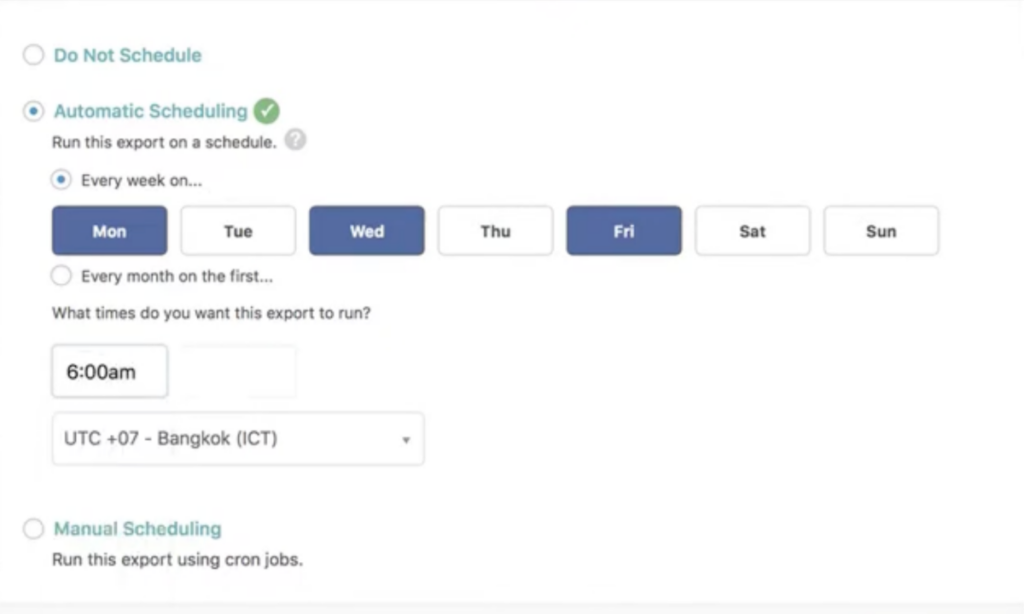
Source systems that publish their XML at a fixed URL work well with WP All Import’s Automatic Scheduling service. For $19 a month, it reruns the saved import on whichever days and hours you pick in Manage Imports, so new orders reach WooCommerce without anyone uploading a file.
Final Thoughts: The Fastest Way to Import WooCommerce Orders from XML
Importing WooCommerce orders from XML runs fastest when the file goes in unedited. Our eight-order test file reached WooCommerce with its original element names and nested product lists, and we did not have to change a single line of it. WP All Import reads WooCommerce order XML element by element, so the file your source system exports is the same file you import.
Automatic Setup handled most of the mapping on upload. The values our file kept in attributes, such as status=”completed”, took one short pass in Manual Setup, where WP All Import reads attributes through XPath and loops repeating product elements into separate line items. Once that import is saved with the order number as its unique identifier, the next XML export from the same source can run through it without any rework.
If your next batch of orders is already waiting in an XML export, see how WP All Import handles WooCommerce order imports and run that file through Automatic Setup yourself.
Common Questions About Importing WooCommerce Orders from XML
What format does an XML file need to import orders into WooCommerce?
WooCommerce does not have a built-in order importer, so the format depends on the plugin you use. WP All Import imports WooCommerce orders from XML files in any structure, including files that nest products inside each order or keep values in attributes. Each element is mapped to its order field during setup, so the file does not need to match a template.
Can I import order notes and refunds from an XML file?
Yes. WP All Import imports order notes and full or partial refunds from XML along with the rest of each order:
- On the Your Import Is Ready screen, click Manual Setup.
- Map the note elements in the Notes section.
- Open Order Items › Refunds and map the refund amount, reason and date.
- Click Preview to check an order, then Run Import.
Will importing past orders change my product stock?
No. WP All Import leaves product stock levels unchanged when it imports WooCommerce orders. In our test, a product ordered three times across two imported orders still showed 29 in stock after the import finished.
Does WooCommerce email customers when orders are imported?
Not by default. WP All Import blocks WooCommerce order emails during an import, so customers are not notified about purchases they made in the past. You can switch this off in Manual Setup’s Import Settings when a file holds new orders that should trigger emails.
Can I import WooCommerce orders from XML with HPOS enabled?
Yes. WP All Import supports WooCommerce High-Performance Order Storage (HPOS) in its latest version and the latest WooCommerce Import Add-On, so XML order imports work the same on HPOS and non-HPOS stores.