
The Best Way to Export Variable Products from WooCommerce
Most reasons to export variable products from WooCommerce start with a request from somebody outside the store. A wax supplier wants the current stock count for every candle scent and jar size. A developer setting up a second shop wants the full catalog with every parent row included, so the new store can rebuild each variation under the right product. Even though the two export files come from the same products, they have very few rows in common.
WP All Export lets you choose exactly which variations go into a WooCommerce export file and which columns they carry, so a store can produce a different file for each request from the same export screen. In this guide, we’ll build the supplier’s file first, since it touches most of the settings that matter, and then show how the same screen handles the other jobs.
What We’ll Cover
What WooCommerce’s Built-In Exporter Gives You
WooCommerce includes a product exporter that can be found under Products › All Products › Export. The Export Products screen asks which columns, product types and categories to include in the export, and whether to add custom meta. To export variable products along with their variations, pick both Variable product and Variation in the product types field, then click Generate CSV.
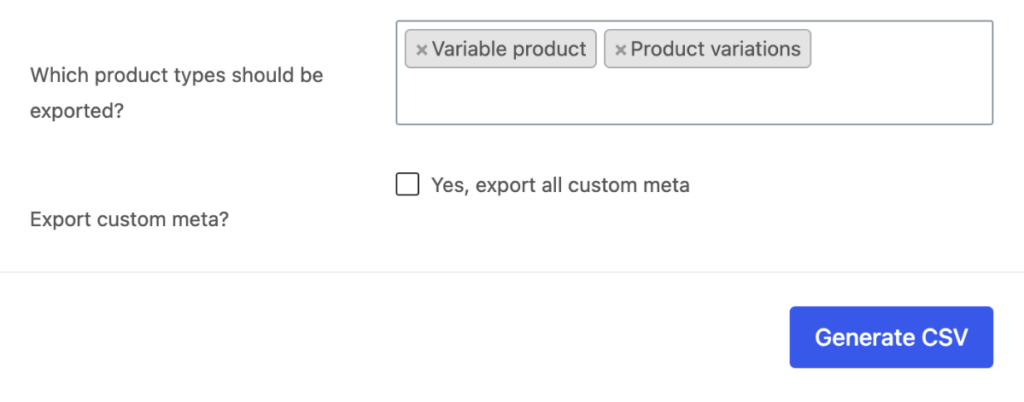
Take the candle the supplier is asking about. It’s sold in Cedar, Fig and Sea Salt, each in an 8 oz or a 14 oz jar, so WooCommerce stores it as one variable product with six variations. If you pick the Candles category on this screen, you get the candle and its six variations in a CSV file. The columns keep WooCommerce’s own names, so the scent sits under a heading like “Attribute 1 value(s).” Each variation row carries a Type of “variation” and a Parent column pointing to the parent’s SKU or ID.
The variation names can also come out without their scent and size. WooCommerce leaves attribute values out of a variation’s name when the product has two attributes and one attribute name is two words long. Our candle’s attributes are named Scent and Jar Size, so its variations fall into that group.
WP All Export exports each attribute as its own named column and saves the file as Excel or CSV, so the supplier’s sheet has columns called “Scent” and “Jar Size” instead of numbered attribute headings.
Exporting Variable Products with WP All Export
The steps below work for any export of WooCommerce variable products. To show each setting in use, we’ll build the supplier’s list as we go, covering the current stock of every candle scent and jar size.
WP All Export exports WooCommerce variable products together with all their variations, filtered by fields such as product category, into an Excel or CSV file with the columns you choose.
Set Up the Product Export
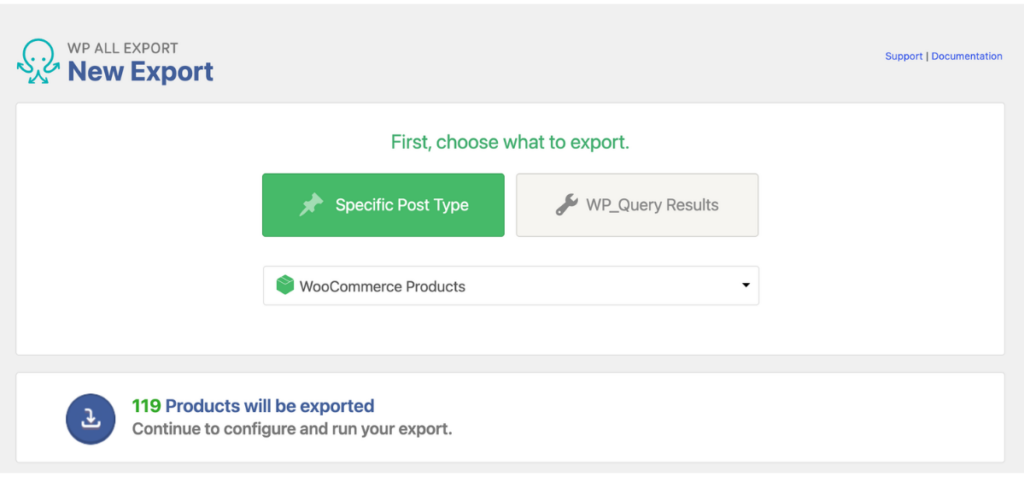
After installing and activating WP All Export on your site, go to All Export › New Export and choose WooCommerce Products from the list. Before you add any settings, WP All Export shows how many records are available, and that count shrinks as you add filters to your export.
Filter the Variable Products
Click Add Filtering Options to limit the export to the records you need. Each rule checks a field against a value you set, and rules can be joined with AND or OR. WP All Export applies the rules to the parent product, and every variation of a matching product comes along with it. If you skip this step, the export includes every product and variation in the store.
Our supplier only deals in candle wax, so the list needs the candles and nothing else. A single Product categories › In Product Cat › Candles rule handles that, and the record count drops to 7: the candle and its six variations.

Customize the Export Columns
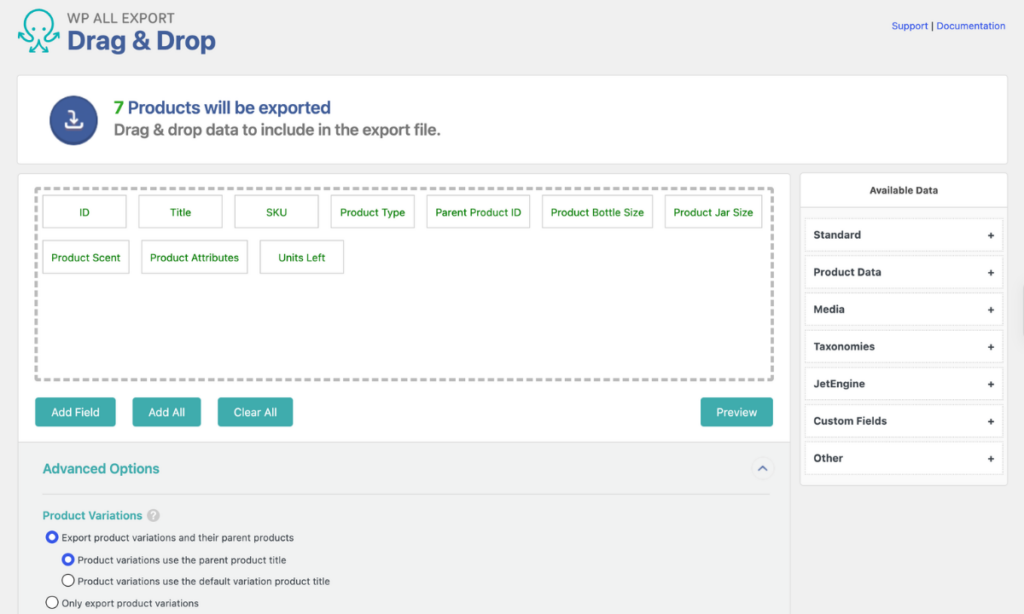
Click Customize Export File to open the drag-and-drop screen. Drag the fields you want from Available Data into the column area, and drag a field back out to remove it. Clicking a column lets you rename it or run its values through a PHP function.
The supplier’s file has five columns: the product title, SKU, Stock, and the Scent and Jar Size attributes. Renaming Stock to “Units Left” tells the supplier what the number means. The Scent and Jar Size columns label each variation, since WooCommerce leaves those details out of the variation names.
WP All Export can pass any export column through a PHP function before the value is written to the file, so a price or product title reaches the recipient in the format they need while the product in WooCommerce stays unchanged.
Control How Variations Are Exported
Once your export includes variable products, a Product Variations setting appears under Advanced Options on the drag-and-drop screen. Export product variations and their parent products is selected by default and keeps each parent above its variations. Only export product variations leaves the parents out, and Only export parent products leaves the variations out. When variations are included, you also choose whether each one uses the parent product title or its own default variation title.
A supplier has no use for the parent candle row, so we chose Only export product variations and kept Product variations use the parent product title. Each row then carries the candle’s full name, and the Scent and Jar Size columns say which variation it is.
What each Product Variations option puts in the file
Export product variations and their parent products
7 rowsThe parent row comes first, with every scent and jar size it offers, followed by one row per variation.
| SKU | Scent | Jar Size | Stock |
|---|---|---|---|
| CND-SOY | Cedar | Fig | Sea Salt | 8 oz | 14 oz | — |
| CND-CEDAR-8OZ | Cedar | 8 oz | 6 |
| CND-CEDAR-14OZ | Cedar | 14 oz | 22 |
| CND-FIG-8OZ | Fig | 8 oz | 30 |
| CND-FIG-14OZ | Fig | 14 oz | 4 |
| CND-SEASALT-8OZ | Sea Salt | 8 oz | 18 |
| CND-SEASALT-14OZ | Sea Salt | 14 oz | 7 |
Only export product variations
6 rowsOne row per scent and jar size, with no parent row.
| SKU | Scent | Jar Size | Stock |
|---|---|---|---|
| CND-CEDAR-8OZ | Cedar | 8 oz | 6 |
| CND-CEDAR-14OZ | Cedar | 14 oz | 22 |
| CND-FIG-8OZ | Fig | 8 oz | 30 |
| CND-FIG-14OZ | Fig | 14 oz | 4 |
| CND-SEASALT-8OZ | Sea Salt | 8 oz | 18 |
| CND-SEASALT-14OZ | Sea Salt | 14 oz | 7 |
Only export parent products
1 rowA single row for the candle as a whole, listing all its scents and sizes.
| SKU | Scent | Jar Size | Stock |
|---|---|---|---|
| CND-SOY | Cedar | Fig | Sea Salt | 8 oz | 14 oz | — |
Generate the Export File
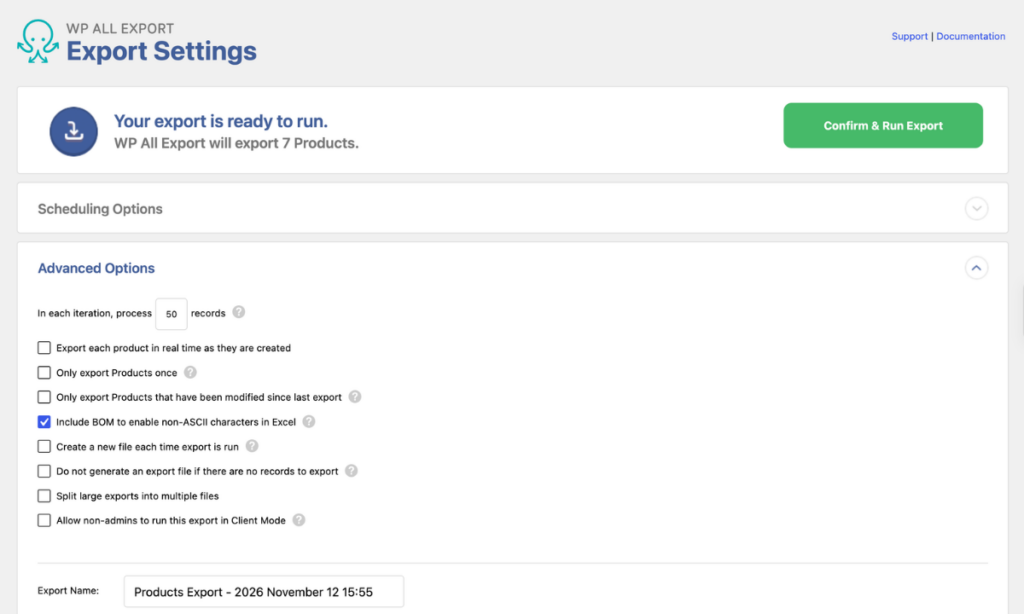
Pick the file type under Export Type on the same screen. Spreadsheet covers CSV and Excel, and Feed covers XML formats, including a Google Merchant Center product feed. Click Continue, then Save & Run Export, and download the file once it finishes. WP All Export saves every export with its filters and columns, so you can run it again later from Manage Exports.
Our supplier works in Excel, so we picked Spreadsheet › Excel File. The file holds six rows, one for each scent and jar size, with the stock count beside each.
Matching the Export to the Job
The supplier’s list is only one request. Most stores that export variable products from WooCommerce end up with a few more, and each one uses a different mix of the settings above.
Scheduling a Recurring Export for Your Supplier
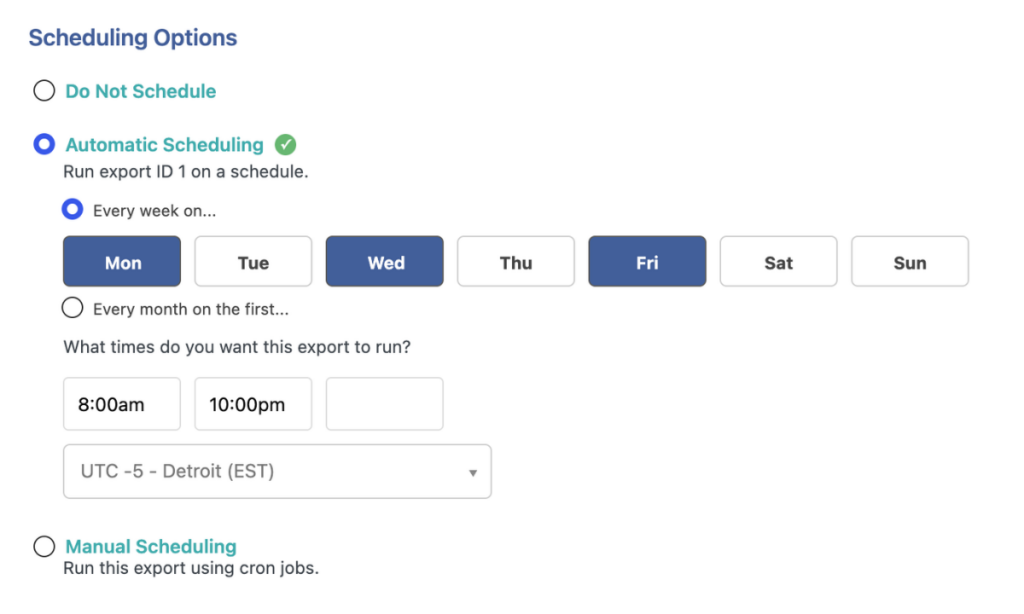
A restock sheet is most useful when it arrives on a regular schedule, and any saved export can run on a timetable. You can trigger it with a cron job on your server, or open Scheduling Options › Automatic Scheduling from Manage Exports and pick the days and times there. WP All Export’s Automatic Scheduling service runs exports on a set schedule without cron jobs or server access, for $19 per month across unlimited sites. Each scheduled run pulls the store’s current stock, so every file reflects that day’s numbers.
A Product Feed for Google Merchant Center
Under Export Type, choose Feed › Google Merchant Center Product Feed. A Merchant Center feed lists every variation as its own item and leaves the parent products out, because Google groups variants through an item group ID. WP All Export sets that item group ID automatically, so all the variations of a product appear together in Google Shopping as one product group.
Moving Variable Products to a New Store
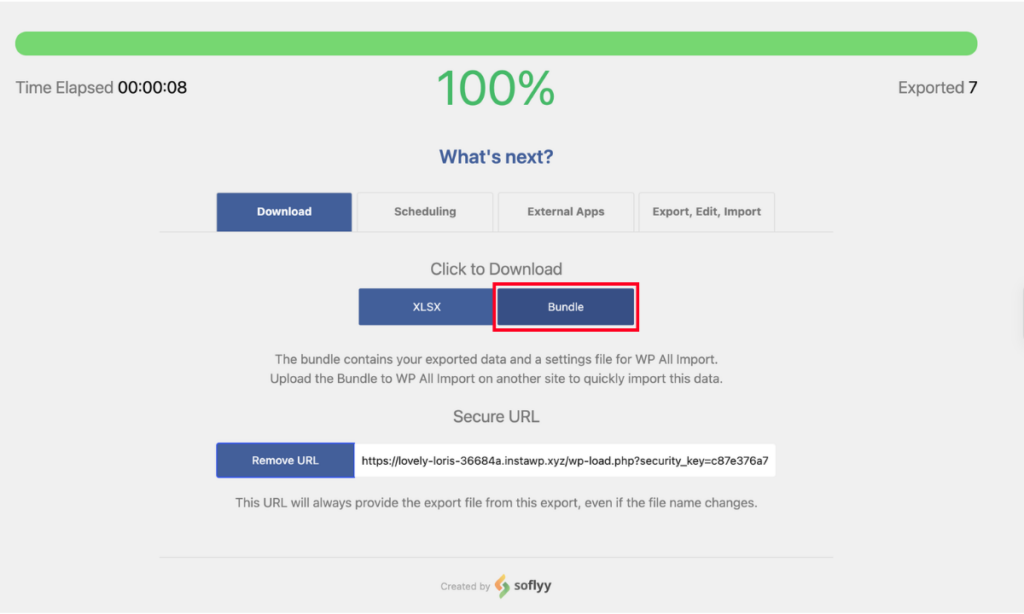
A migration is where WP All Export and WP All Import show how well they work together. On the old store, start a WooCommerce Products export and click Migrate Products. WP All Export skips the column setup and packages the catalog into a Bundle, a ZIP file that holds the exported products along with a settings file written for WP All Import.
On the new store, go to All Import › New Import and upload the ZIP. WP All Import reads the settings file and sets up the whole import itself, so there are no columns to match and no product type to choose. Each variation is recreated under its parent product, with its attributes, images, galleries and stock carried over. WP All Import configures a bundle import automatically, so a full catalog of WooCommerce variable products moves to a new store without any field mapping.
You don’t even need to download the file. Manage Exports gives the bundle its own URL, and pasting it into the new store’s import under Download a file › From URL pulls the bundle straight from the old site.
Final Thoughts
The best way to export variable products from WooCommerce depends on who will open the file. A supplier checking stock and a developer moving a catalog need different rows, and the export settings should follow from that. WooCommerce’s built-in exporter puts every selected parent and variation into one CSV, with filtering limited to product type and category and columns that keep WooCommerce’s internal names. A supplier reading that file has to work out which attribute column holds the scent and which holds the jar size.
WP All Export is the best plugin for exporting WooCommerce variable products because it lets you decide whether parent products appear in the file, and every column can be renamed or reshaped with a PHP function before the file is written. Every export is saved with its filters and columns, so a file that took a few minutes to set up can be run again from Manage Exports whenever it’s needed.
WP All Export comes as part of WP All Import’s Import + Export packages, and every package is backed by a 90-day money-back guarantee.
Common Questions About Exporting Variable Products
Does the WooCommerce product export include variations?
Yes. WooCommerce’s built-in product export includes variations when Variation is selected as a product type, or when the product types are left on their default setting. Each variation gets its own row, with a Type of “variation” and a Parent column holding the parent product’s SKU or ID.
How do I export WooCommerce variations together with their parent products?
WP All Export can export each variation together with its parent product. To set it up:
- Go to All Export › New Export and choose WooCommerce Products.
- Add a filter that includes your variable products, such as Product Type › In Product Type › Variable product.
- Click Customize Export File and add the fields you need.
- Under Advanced Options › Product Variations, keep Export product variations and their parent products selected.
- Click Continue, then Save & Run Export.
Why are some cells empty in a variable product export?
Some cells are empty in a variable product export because WooCommerce stores the data at two levels. Prices and stock belong to each variation, so the parent row has nothing to show in those columns. Some product-level details belong to the parent, which leaves gaps in the variation rows. WP All Export fills variation titles from the parent with Product variations use the parent product title, and Remove empty columns from export file under Advanced Options drops any column with no data in it.
How do I schedule a variable product export?
You can schedule a variable product export with WP All Export’s Automatic Scheduling service:
- Go to All Export › Manage Exports.
- Find the export and open Scheduling Options.
- Choose Automatic Scheduling.
- Set how often it runs, then pick the days and times.
- Save the schedule.
What’s the difference between a variable product and a variation in WooCommerce?
A variable product in WooCommerce is the parent listing that holds a product’s attributes, such as size and color. A variation is one specific combination of those attributes with its own SKU, price and stock. Shoppers see a single product page and pick their variation from its dropdowns. In an export of variable products, each variation becomes its own row.