
The Fastest Way to Import WooCommerce Orders from CSV
An order history is the heaviest thing to move between stores, and the easiest to get wrong. Products are flat, one row and one item. Orders are not. Each order is a purchase sitting on top of other records, and a CSV file carries only the top layer.
In this article, I will show you the fastest way to import WooCommerce orders from CSV. The whole import runs on four screens, and your CSV columns are matched to WooCommerce order fields automatically.
What We’ll Cover
- What a WooCommerce Order Import Needs From the CSV
- Automatic Setup vs Manual Mapping for WooCommerce Orders
- How to Import WooCommerce Orders From CSV in Four Steps
- WooCommerce Order Fields to Check Before You Run the Import
- How to Re-Import a CSV Without Creating Duplicate Orders
- Is Automatic Setup the Fastest Way to Import Orders?
- Common Questions About Importing WooCommerce Orders
What a WooCommerce Order Import Needs From the CSV
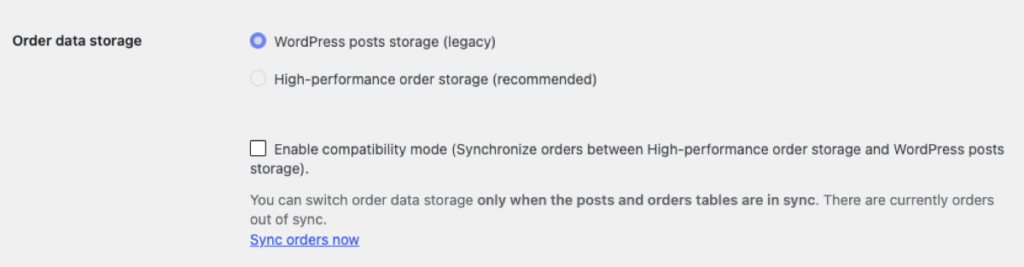
Since WooCommerce 8.2, released in October 2023, new stores keep orders in four dedicated tables instead of wp_posts and wp_postmeta, a layer WooCommerce calls High-Performance Order Storage (HPOS). Stores built earlier stay on the posts tables until an admin switches them at WooCommerce › Settings › Advanced › Features. Where the data lands changes. What a CSV can supply does not.
Order files usually arrive from a WooCommerce export, another platform, or a backup, and the CSV layout differs between all three.
| Part of the order | What the CSV supplies | What the store needs already |
|---|---|---|
| Line items | Product identifier, quantity, line total | The product, with a matching SKU or ID |
| Customer | Name, email, billing address | A customer account, or guest checkout |
| Shipping | Method name and shipping cost | That method inside a shipping zone |
| Status | The original status value | A status WooCommerce recognises |
| Order number | The original order ID | Nothing, because WooCommerce assigns its own |
A row describes a transaction, and WooCommerce expects the network around it to exist. An order with no matching product still imports, with a line item that has no product attached. One with no matching customer arrives as a guest. Both gaps land quietly, which is why the checks below matter more than the upload itself.
Automatic Setup vs Manual Mapping for WooCommerce Orders
The slow part of a CSV order import is the mapping process. Someone sits with the template editor and drags each column onto a field, once for every column in the file. Get one wrong and the import still runs, with that value landing in the wrong place.
WP All Import comes with an Automatic Setup that takes that hassle away. The plugin reads the file and pairs each column with the order field it belongs to. What comes back is a summary you can accept or inspect. Manual Setup is still there, and the editor it opens arrives pre-filled with the automatic mapping.
Automatic Setup reads CSV, Excel, and XML order files. What it does with one depends on the layout inside. When each product has its own row and the order details repeat, it groups those rows into single orders by order ID. When every product of an order sits in one pipe-separated cell, splitting the values needs Manual Setup.
How to Import WooCommerce Orders From CSV in Four Steps
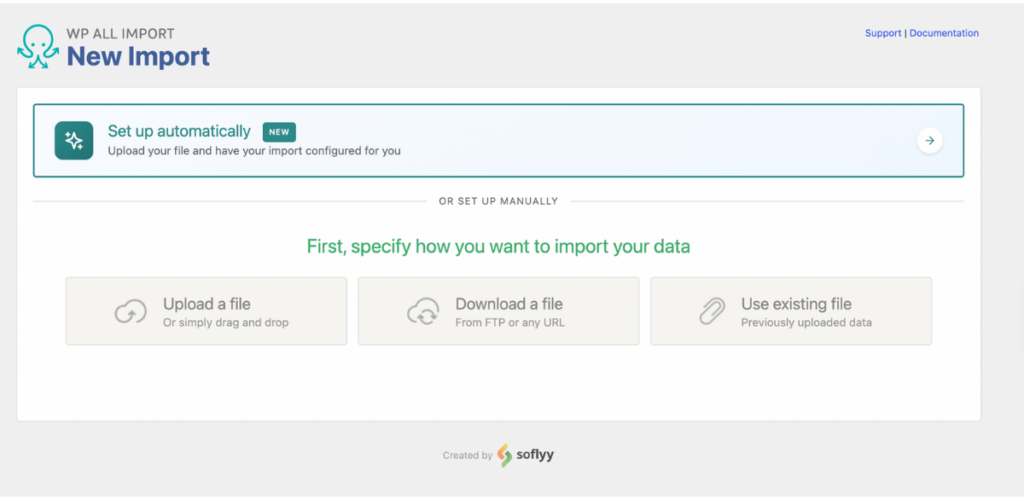
Step 1. Load the file. Go to All Import › New Import and click the Set up automatically banner.
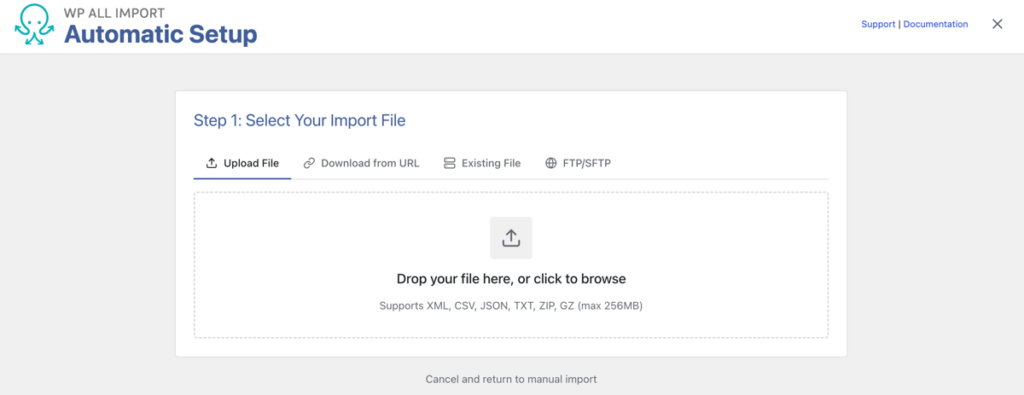
The CSV can arrive as an upload, a URL, an existing file in wp-content/uploads/wpallimport/files/, or an FTP/SFTP pull.
Under Choose What to Import, pick WooCommerce, then Orders.
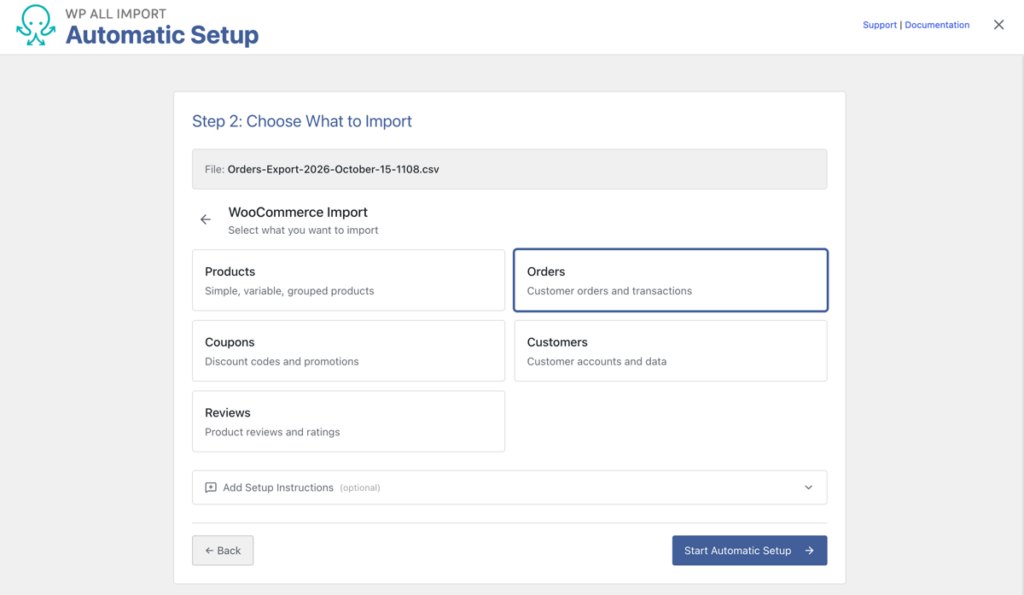
Step 2. Label the odd columns. Add Setup Instructions takes plain notes before the analysis runs, such as “the Contact column holds the customer email”. That note is what stops a strange column name becoming a strange mapping. Click Start Automatic Setup.
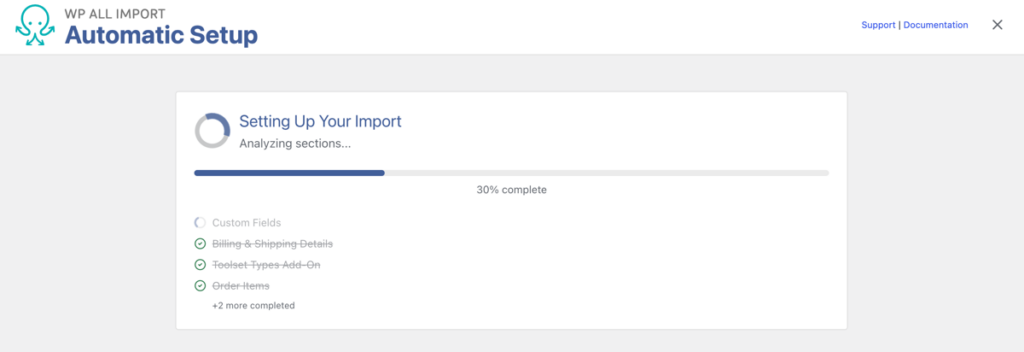
Step 3. Read the summary card. Once you move to the next step, Your Import Is Ready reports the order count and the number of fields mapped.
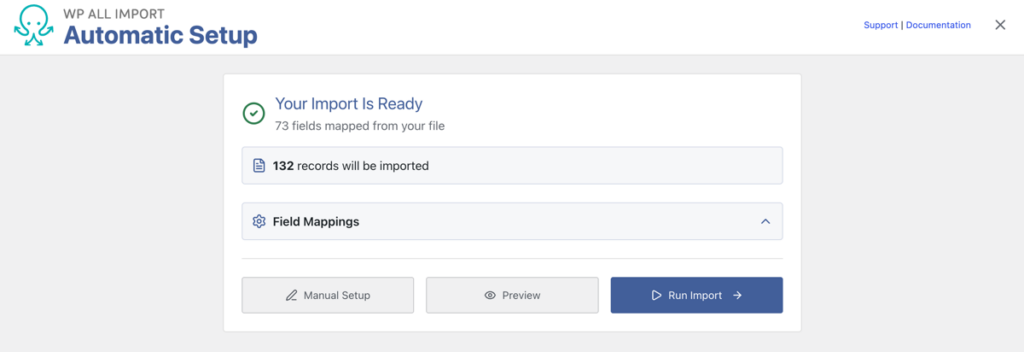
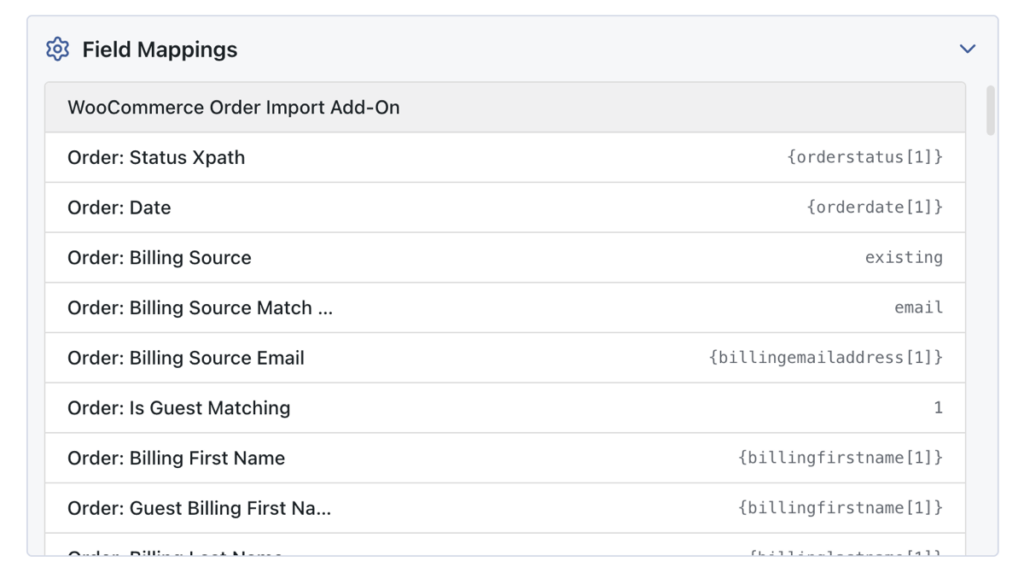
Expand Field Mappings and read it against the CSV. Four groups deserve the attention: customer and billing details, the financial columns, the line items column, and the status and date columns. A wrong pairing is fixed through Manual Setup, which opens the same mapping in an editor.
Step 4. Preview, then run. Click Preview and the panel opens beside the mappings. For orders it shows WP Admin View, the WooCommerce order edit screen as each record will look, with addresses filled in, line items and quantities listed, and totals in their own fields.
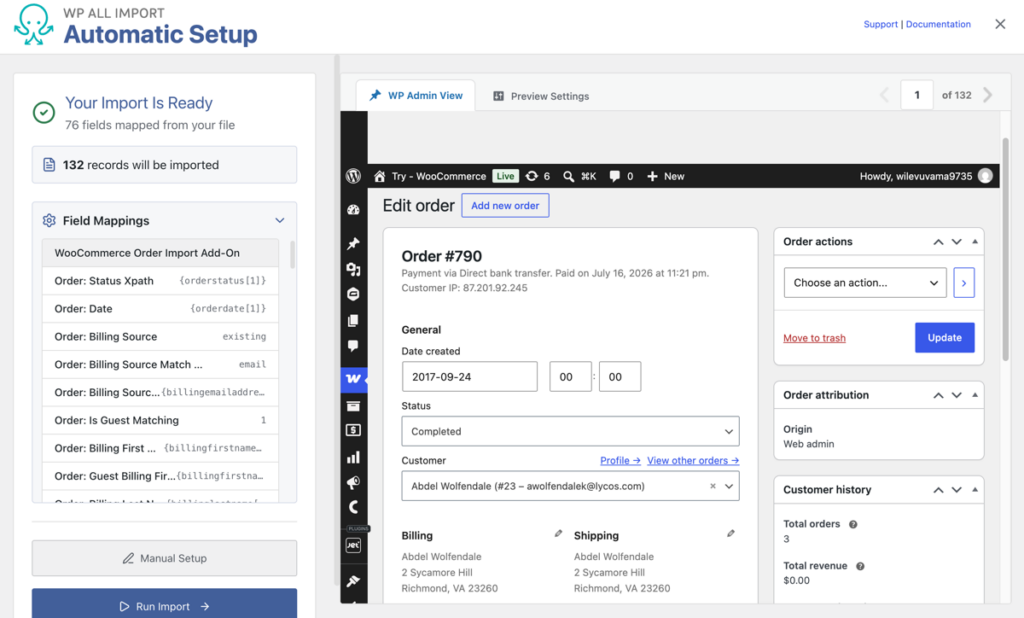
Use the arrows to step through the file, starting with any order that has several items, a coupon, or a refund. A bad mapping shows up in those first. When it looks right, click Run Import. Records process in background batches, so a long history finishes without hitting the server execution limit.
Then open WooCommerce › Orders and check a multi-item order: customer attached, status matching the source file, total equal to the original.
WooCommerce Order Fields to Check Before You Run the Import
Order status and order date
Order Details holds both fields. A status imports as written only when the value matches WooCommerce’s own set: pending payment, processing, on hold, completed, cancelled, refunded, failed. Shopify, marketplace, and ERP exports say paid, fulfilled, or shipped, which WooCommerce has no status for.
WP All Import translates them with a PHP function added under All Import › Settings › Function Editor and returns the result to the Order Status field as [map_order_status({orderstatus[1]})]. Anything unmapped lands as On hold, so an unknown status becomes a review item. Leave the date column unmapped and years of order revenue report as a single day.
Line items and Existing Product Identifier
Order Items › Products is where a purchased product attaches to a real product record. Existing Product Identifier accepts a SKU, a product ID, or a title, and the value in the CSV has to match one of those on the site. No match means the line imports unlinked: name and price present, thumbnail, SKU, and product link absent, warning in the log. Import products first and every line stays connected.
Customer matching and the email setting
Billing and Shipping hold the addresses, while the customer link is separate. Matching runs on email, user ID, or username, and email survives a migration because the address travels with the buyer. No match gives a guest order with the addresses intact.
Import Settings carries Email Notifications for Customers, and Block email notifications during import is ticked by default. Leave it ticked: a thousand imported orders with notifications on sends a thousand emails about purchases made somewhere else.
How to Re-Import a CSV Without Creating Duplicate Orders
Marketplace and point-of-sale exports repeat, and the same orders return with new statuses. The Unique Identifier is what turns a repeat run into an update. Set it to the order ID column with Auto-detect on the Import Settings screen, reachable from Manual Setup.
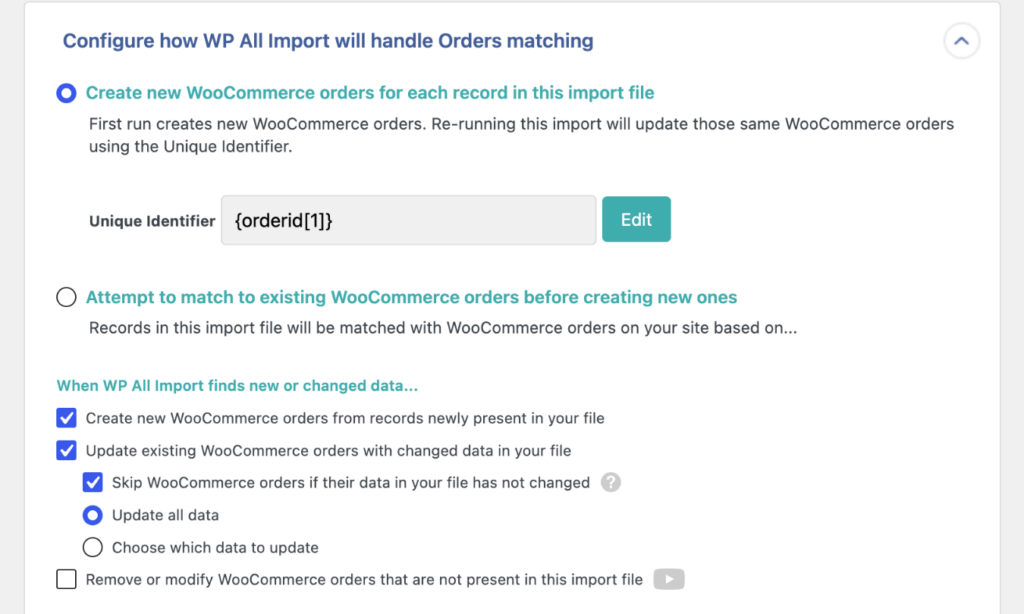
Three settings then decide the behaviour: Update existing WooCommerce orders with changed data in your file, Skip WooCommerce orders if their data in your file has not changed, and Choose which data to update when only the status should move. Automatic Scheduling or a server cron job re-runs the whole import on that basis, so a status change in the CSV reaches the matching order on the next pass.
Is Automatic Setup the Fastest Way to Import Orders?
For a clean export, the automatic path is the shortest one that still produces complete records. Four screens, one review pass, and a preview of the WooCommerce order edit screen before a row is written.
It stops being the fastest when the file fights it. Pipe-packed line items, marketplace statuses, and SKUs that do not match the new store each cost a Manual Setup visit, and those visits are where a day disappears. Fix the CSV first, or import products and customers ahead of the orders, and the run stays at four screens. A store moving thousands of orders between platforms should expect all three problems, so the time belongs at the front of the job rather than inside the import.
Common Questions About Importing WooCommerce Orders
Does WooCommerce come with an order importer? No. The CSV importer built into WooCommerce handles products, and orders have no matching screen. Order history needs a plugin that maps columns to order fields, links line items to products, and keeps original dates and statuses.
Will the import email my customers? No. WP All Import blocks order notifications during an import by default. The Block email notifications during import checkbox sits in Email Notifications for Customers on the Import Settings screen and stays ticked unless someone clears it. Statuses still change, and the records still import.
Do products have to exist before the orders? Yes, when the CSV identifies products by SKU, product ID, or title. An order with no match still imports, with the line unlinked and a warning in the log. Running the product import first keeps every line item attached.
Can the same CSV run twice without duplicates? Yes, once the order ID column is set as the Unique Identifier. Auto-detect picks it on the Import Settings screen, and a re-run matches incoming rows to the orders it created, updating them in place. Without one, each run writes new orders.
Can refunds and coupons come with the orders? Yes. Order Items holds separate tabs for Coupons and Refunds, so a coupon imports with its code and amount, a refund with its amount, reason, and date. The coupon has to exist in the store before an order references it.